
Enabling Token Protection in Entra ID Conditional Access
|
Field |
Details |
|
Document Type |
How-To Guide - Enable Token Protection in Entra ID Conditional Access |
|
Applies To |
Microsoft Entra ID, Conditional Access policy |
|
Audience |
2nd Line / Entra ID Admins / IT Engineer |
|
Author |
AK. Udofeh |
|
Last Updated |
March 2026 |
Overview
Token Protection is a Conditional Access session control that cryptographically binds authentication tokens (e.g., Primary Refresh Tokens) to a specific device. This prevents token replay, pass‑the‑cookie attacks, and AiTM token theft. It ensures that even if an attacker steals a token, they cannot use it on another machine.
Use Cases
Use Token Protection when:
- Protecting Exchange Online, SharePoint Online, Teams, and Microsoft 365 native applications.
- Hardening admin or power‑user endpoints
- Preventing AiTM attacks that harvest tokens after MFA completion
- Enforcing Zero‑Trust principles
Prerequisites
Licensing - Microsoft Entra ID P1 is required for Token Protection.
Device Requirements
Supported Platforms (per Microsoft):
| Platform | Support Level | Requirements |
|---|---|---|
| Windows 10+ | GA | Entra‑joined, Hybrid‑joined, or Entra‑registered devices |
| macOS 14+ | Preview | Must be MDM‑managed + Enterprise SSO plug‑in |
| iOS/iPadOS 16+ | Preview | Must be MDM‑managed + Enterprise SSO plug‑in |
| Android | ❌ Not Supported | - |
Application Requirements
Token Protection currently supports:
- Exchange Online
- SharePoint Online
- Microsoft Teams
- Supported Microsoft 365 native clients (Outlook, OneDrive, Teams)
Browser‑based sessions NOT supported (only native apps). Deploy in Report‑only mode first to prevent app/device disruption. MDM is required for macOS/iOS preview support.
Step‑by‑Step Configuration
Step 1: Validate Device Registration
Devices must be:
- Entra‑joined
- Hybrid‑joined
- Entra‑registered
This ensures PRT issuance.
Step 2: Create a Pilot Group
Create group: TokenProtection‑Pilot.
Step 3: Create Token Protection Conditional Access Policy
- Go to Entra Admin Center > Entra ID > Conditional Access
- Click + New Policy.
- Name it Enable Token Protection (Pilot).
- Assign:
- Users: Choose a Pilot Security Group
- Cloud Apps: Office 365 Exchange Online, Office 365 SharePoint Online, Microsoft Teams Services
- Cloud Apps: Office 365 Exchange Online, Office 365 SharePoint Online, Microsoft Teams Services
- Users: Choose a Pilot Security Group
The Conditional Access policy should only be configured for these applications. Selecting the Office 365 application group might result in unintended failures. This change is an exception to the general rule that the Office 365 application group should be selected in a Conditional Access policy. - According to Microsoft Learn.
- Conditions > Device Platform > Set Configure to Yes > Include: Windows
- Select Done
- Under Client apps > Set Configure to Yes
Not configuring the Client Apps condition, or leaving Browser selected might cause applications that use MSAL.js, such as Teams Web to be blocked.
- Under Modern authentication clients, only select Mobile apps and desktop clients. Leave other items unchecked.
- Select Done
- Access Controls > Session > Enable Token Protection
- Set Require token protection for sign-ins.
- Enable policy in Report‑only mode.
Step 4: Move to Full Enforcement
After reviewing logs:
- Set policy to ON
- Gradually expand target groups
Validation Steps
Capture logs and analyze
Monitor Conditional Access enforcement of token protection before and after enforcement by using features like Policy impact, Sign-in logs, and Log Analytics.
Sign-in logs
Use Microsoft Entra sign-in log to verify the outcome of a token protection enforcement policy in report only mode or in enabled mode.
- Sign in to the Microsoft Entra admin center as at least a Conditional Access Administrator.
- Browse to Entra ID > Monitoring & health > Sign-in logs.
- Select a specific request to determine if the policy is applied or not.
- Go to the Conditional Access or Report-Only pane depending on its state and select the name of your policy requiring token protection.
- Under Session Controls check to see if the policy requirements were satisfied or not.
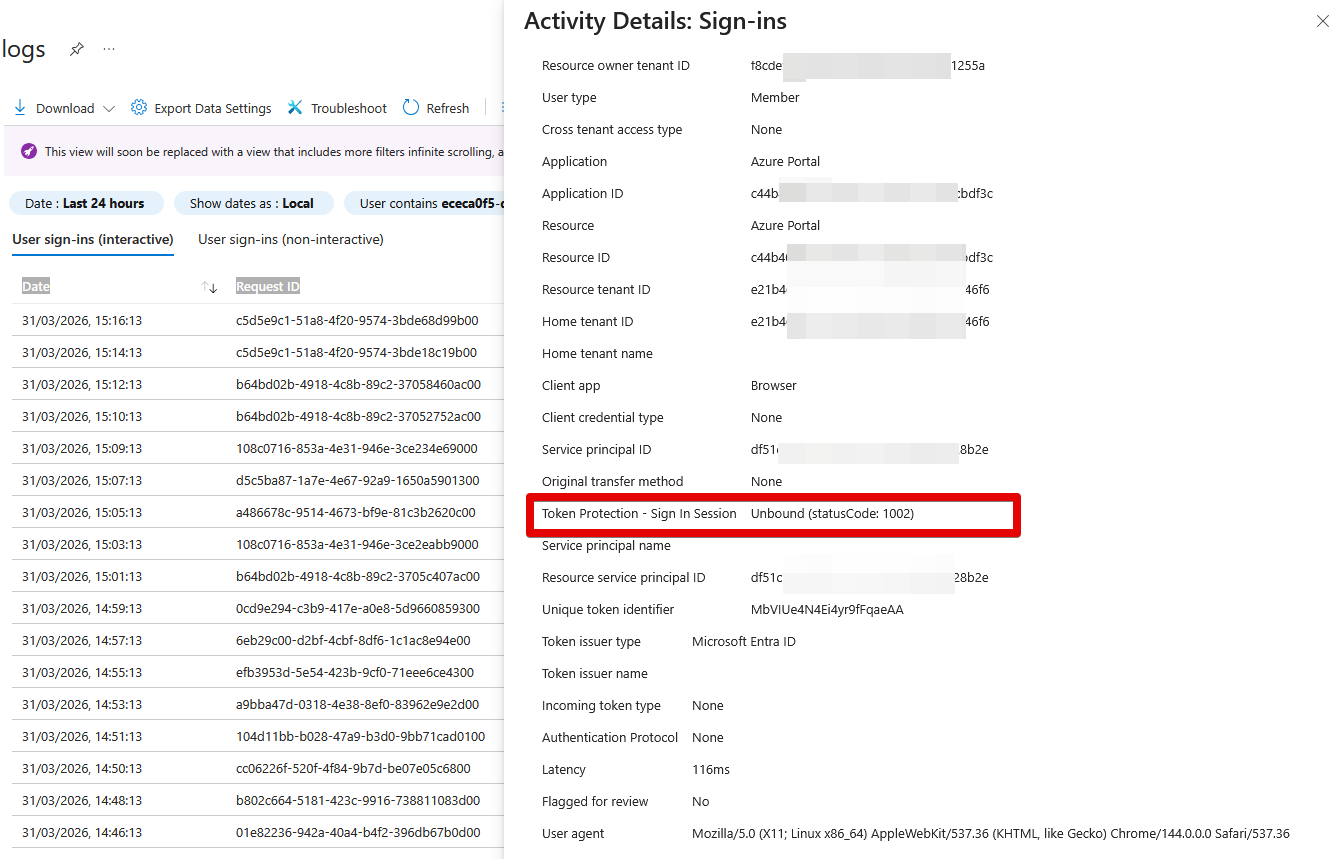
- To find more details about the binding state of the request, select the pane Basic Info and see the field Token Protection - Sign In Session. Possible values are:
- Bound: the request was using bound protocols. Some sign-ins might include multiple requests, and all requests must be bound to satisfy the token protection policy. Even if an individual request appears to be bound, it doesn't ensure compliance with the policy if other requests are unbound. To see all requests for a sign-in, you can filter all requests for a specific user or look by correlation ID.
- Unbound: the request wasn't using bound protocols. Possible
statusCodeswhen request is unbound are:- 1002: The request is unbound due to the lack of Microsoft Entra ID device state.
- 1003: The request is unbound because the Microsoft Entra ID device state doesn't satisfy Conditional Access policy requirements for token protection. This error could be due to an unsupported device registration type, or the device wasn't registered using fresh sign-in credentials.
- 1005: The request is unbound for other unspecified reasons.
- 1006: The request is unbound because the OS version is unsupported.
- 1008: The request is unbound because the client isn't integrated with the platform broker, such as Windows Account Manager (WAM).
======================== Troubleshooting =======================
| Issue | Cause | Solution |
|---|---|---|
| User blocked from Outlook/Teams | Device not registered / not supported | Verify Entra join/registration status |
| macOS/iOS failing | Not MDM‑managed | Enforce MDM requirement for preview support |
| Browser apps unaffected | Browsers not supported | Use native apps or combine with CA blocking controls |
| Token still reusable | App not in supported list | Only Teams/SharePoint/Exchange supported currently |
No comments to display
No comments to display