
HOW TO: Export & Import Microsoft Edge Browser Bookmarks
|
Field |
Details |
|
Document Type |
How-To Guide - Export & Import MS Edge browser Bookmarks Runbook |
|
Applies To |
Browser |
|
Audience |
End-users |
|
Author |
AK. Udofeh |
|
Last Updated |
September 2025 |
Overview
This document outlines steps to export and import your Microsoft Edge browser bookmarks before joining your device to Entra ID (Azure AD) or before you switch to a new device.
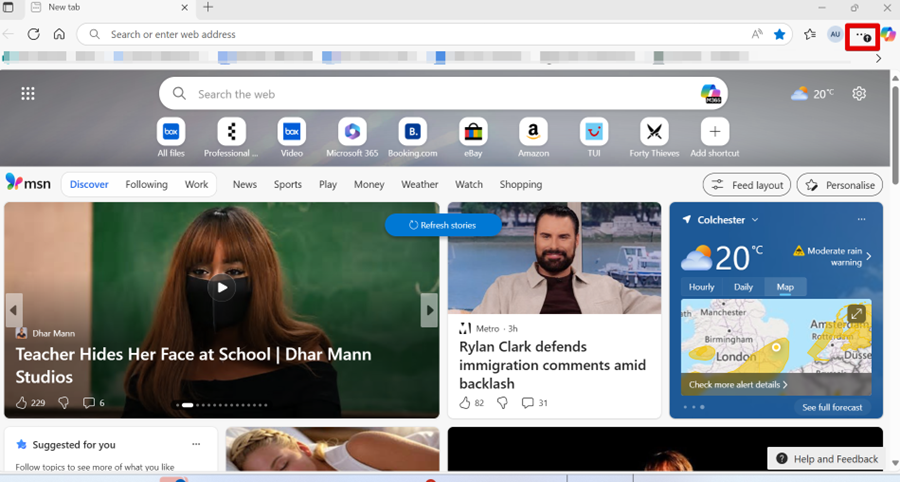
Step 1: Open Edge > Settings and more (⋯)
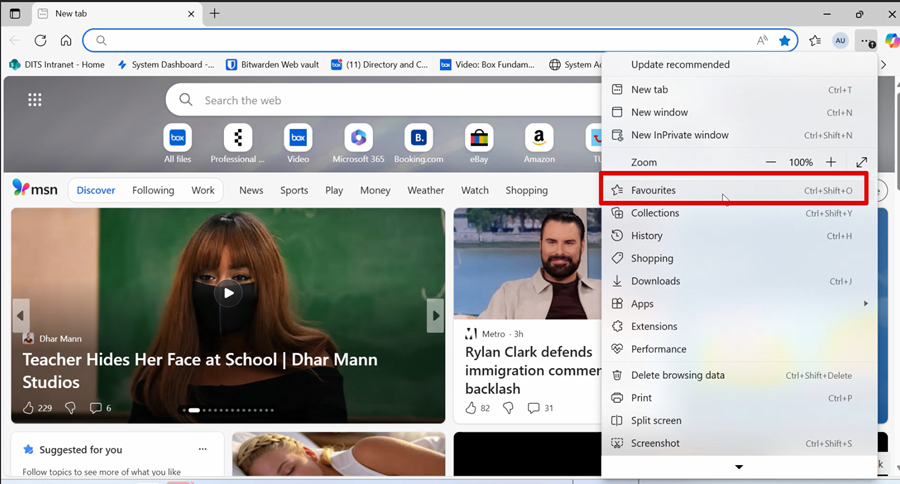
Step 2: Click “Favourites”.
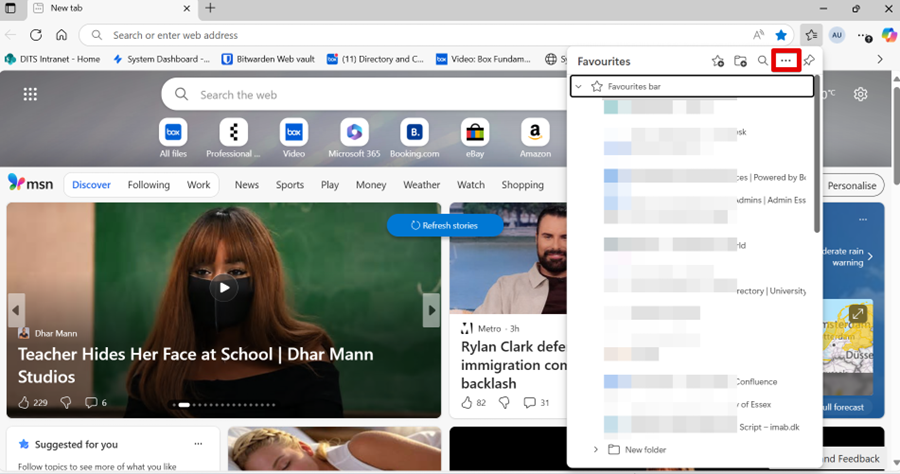
Step 3: Click the three-dot … menu (top right)
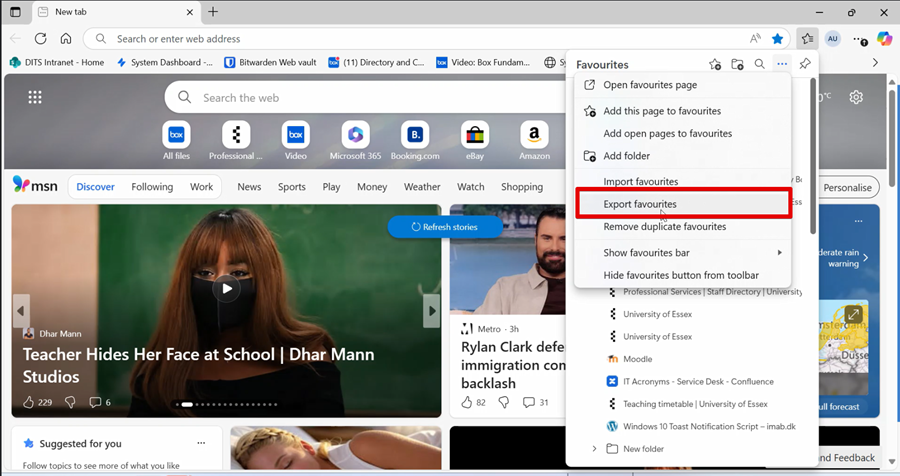
Step 4: Click “Export favourites” > save the .html file. (You may want to save it in OneDrive or Box)
=======================================================================================
HOW TO: Import or restore Microsoft Edge Browser Bookmarks
Step 1: Open Edge.
Step 2: Click the three dots (…) in the top-right corner.
Step 3: Go to Favourites.
Step 4: Click the three-dot menu > Import favourites.
Step 5: Choose “Import” beside the “Import data from IE11” option > select “Favourites or
bookmarks HTML file” from the list (“Import browser data” menu list).
Step 6: Browse to the exported .html bookmarks file you saved earlier.
Step 7: Select it and click Open.
Step 8: Your bookmarks will now appear in Edge.
Delete .html files after importing on the new device.
No comments to display
No comments to display