HOW TO: Join a Windows Computer to Microsoft Intune
|
Field |
Details |
|
Document Type |
How-To Guide - Join a Windows Computer to MS Intune Runbook |
|
Applies To |
Microsoft Entra ID & Microsoft Intune |
|
Audience |
2nd Line, Entra ID & Intune Admin |
|
Author |
AK. Udofeh |
|
Last Updated |
Nov 2025 |
Overview
This guide details the steps to follow to join a Company-owned Windows computer to Entra ID (formerly known as Azure AD). Joining a device to Microsoft Entra ID enables a secure Single Sign-On (SSO) experience to Corporate Apps, policy-based device management via Intune, and access controls via Entra ID Conditional Access Policy. It also allows Administrators to enforce compliance, manage updates, and remotely wipe lost or stolen devices.
The device must be Windows 10 or 11 Pro, Enterprise or Education. The device must have internet access to reach Microsoft Entra services during the join process. User must sign in with the Organisation's account, and the account must have permissions to join devices.
If another MDM agent (or on-prem AD join with GPO) is active, joining may fail or cause conflicts.
Your old workgroup profile will be separate from the new Entra ID profile, and some personalisation may be lost. As such, you may want to move your data in the Downloads, Documents, and Desktop folders and export your Internet browser bookmarks, saved passwords and store the backup files in OneDrive or Box Cloud Storage before starting the device join process.
You may have to install Company Portal from Microsoft Store if it is not already installed on your device.
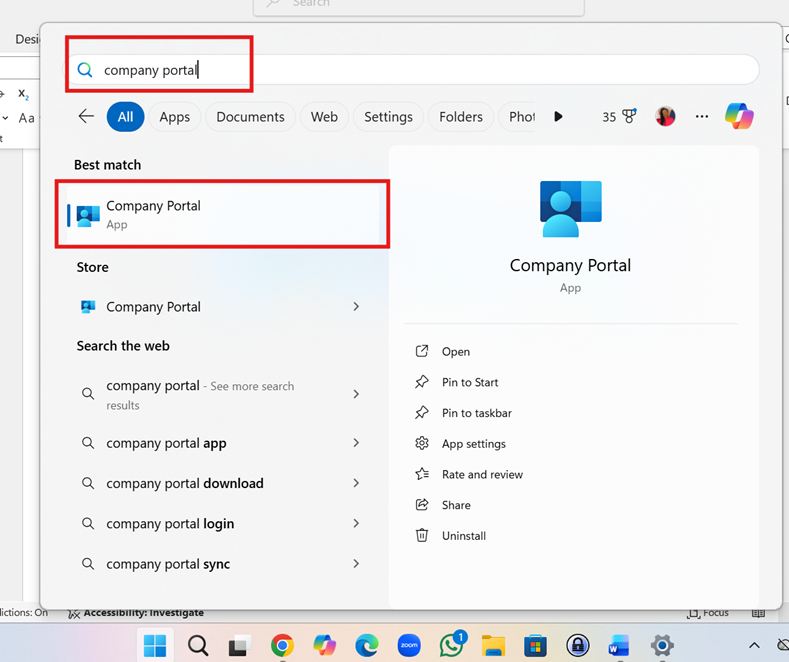
Step 1: Click the Start menu on the Taskbar > type “Company Portal” in the search bar and click on the Company Portal App to open.
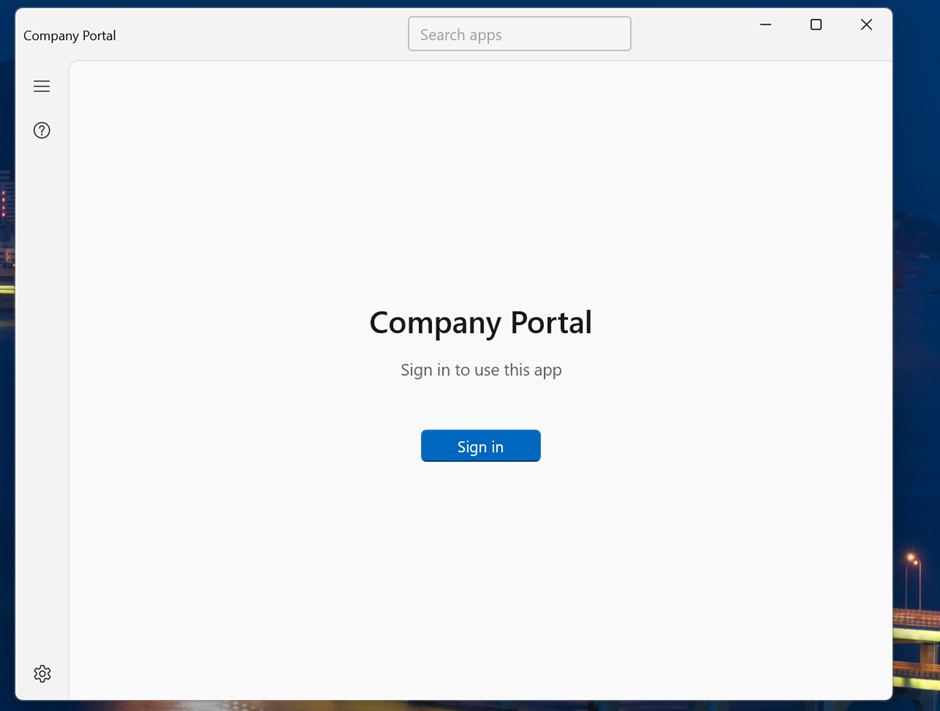
Step 2: Click “Sign in”.
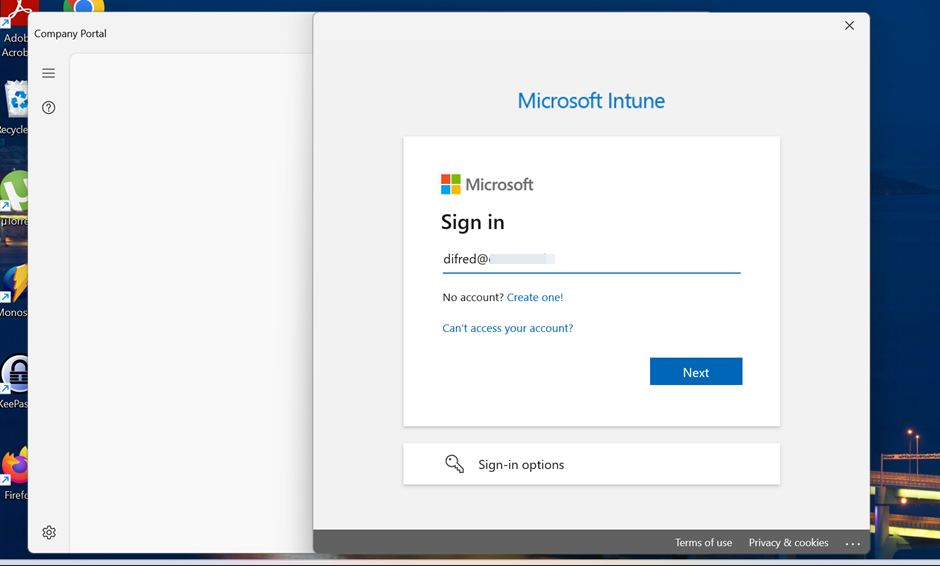
Step 3: Type in your username and click Next.
Step 4: Type in your password and click Sign in.
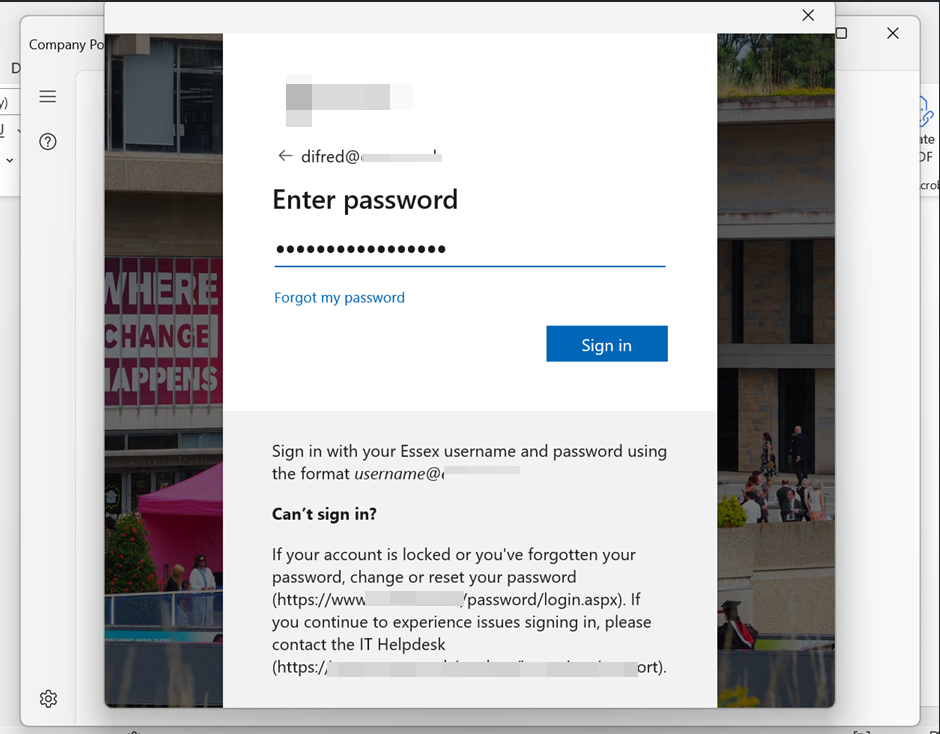
Step 5: Type in the number shown into your Authenticator App to verify your log in.
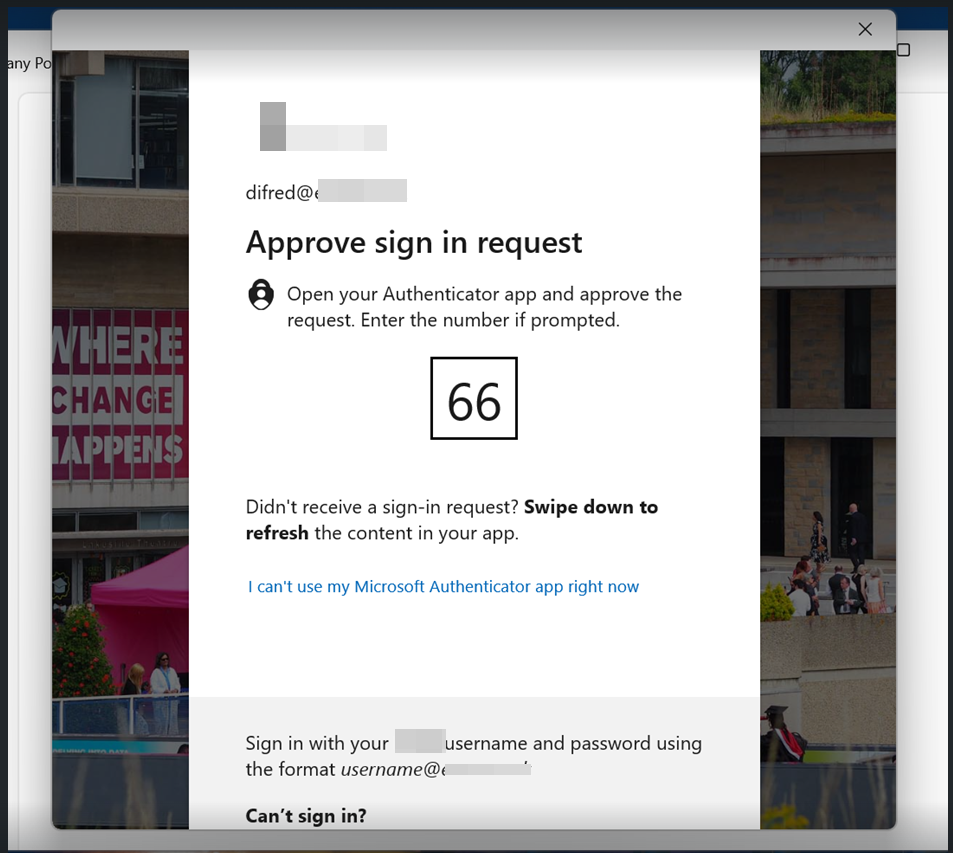
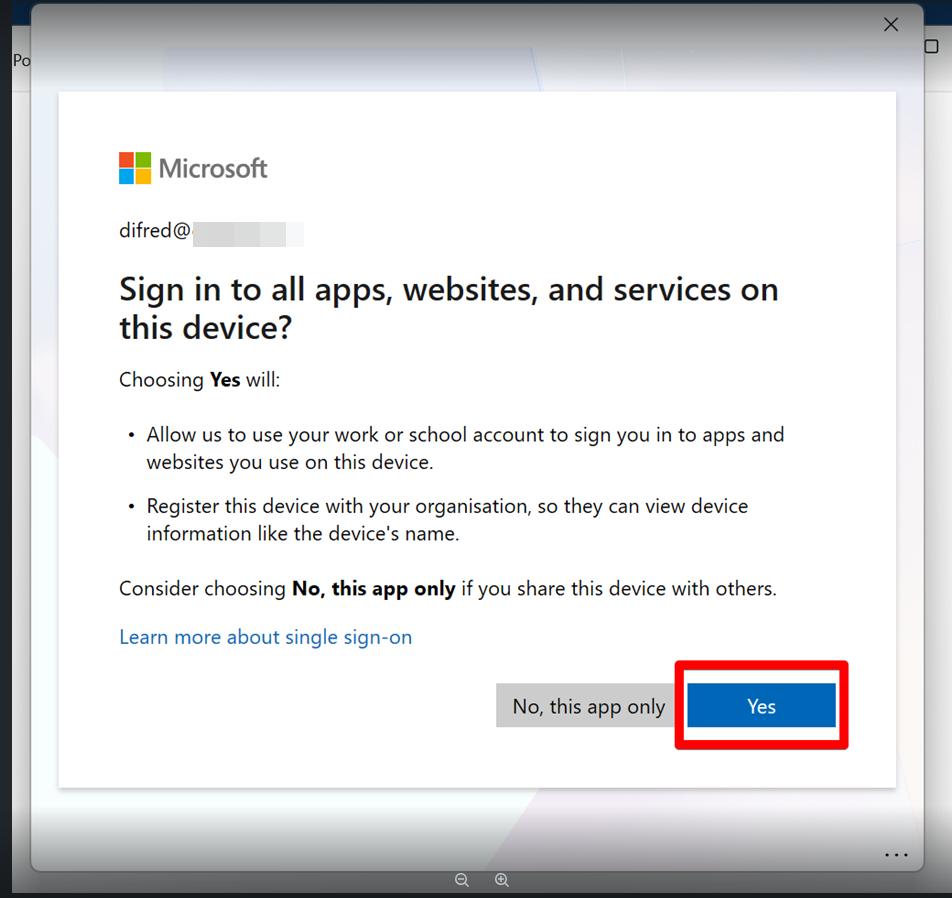
Step 6: Click “Yes” to register your device with Entra ID.
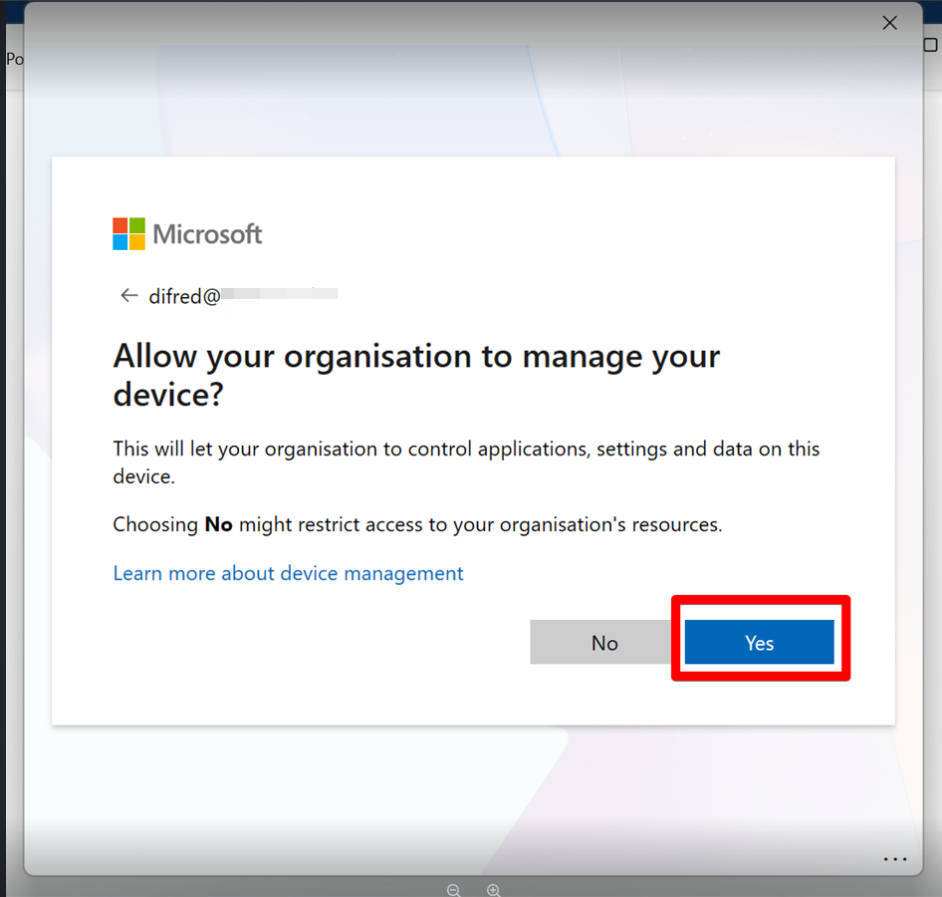
Step 7: Click “Yes” to enrol your device for management in Intune.
Step 8: Allow the registration process to complete
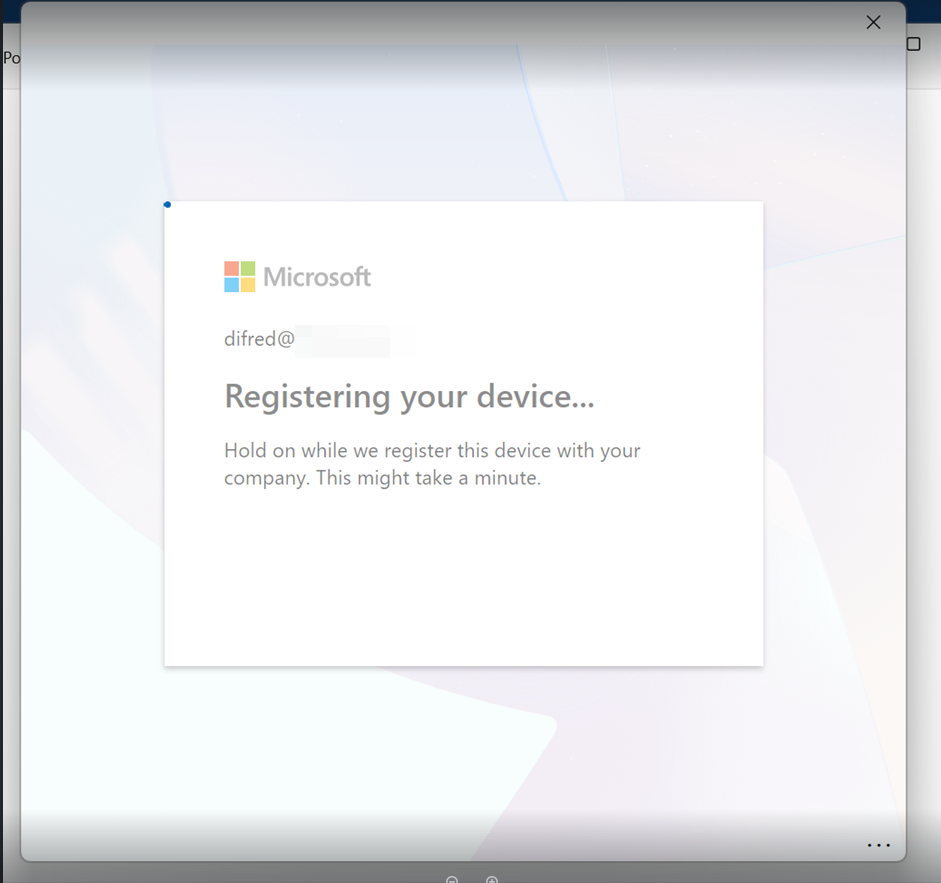
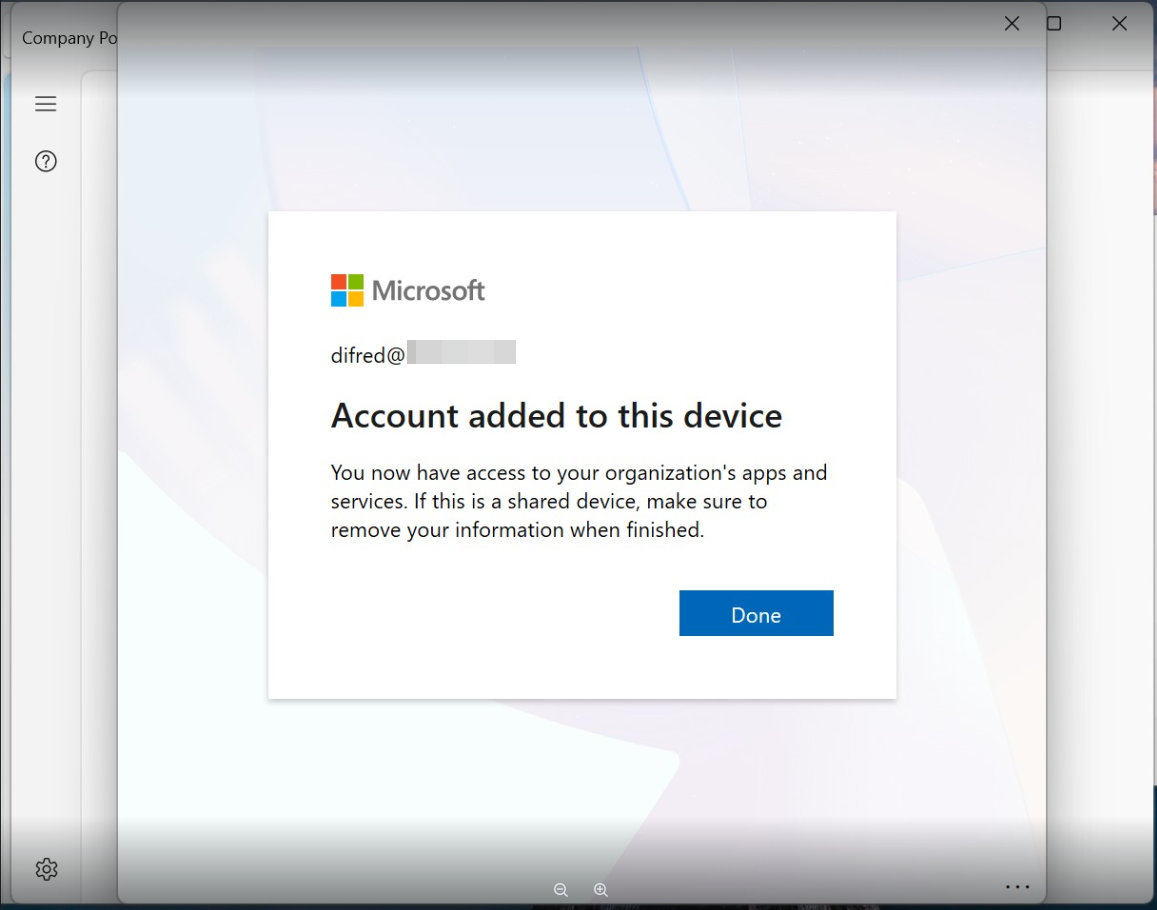
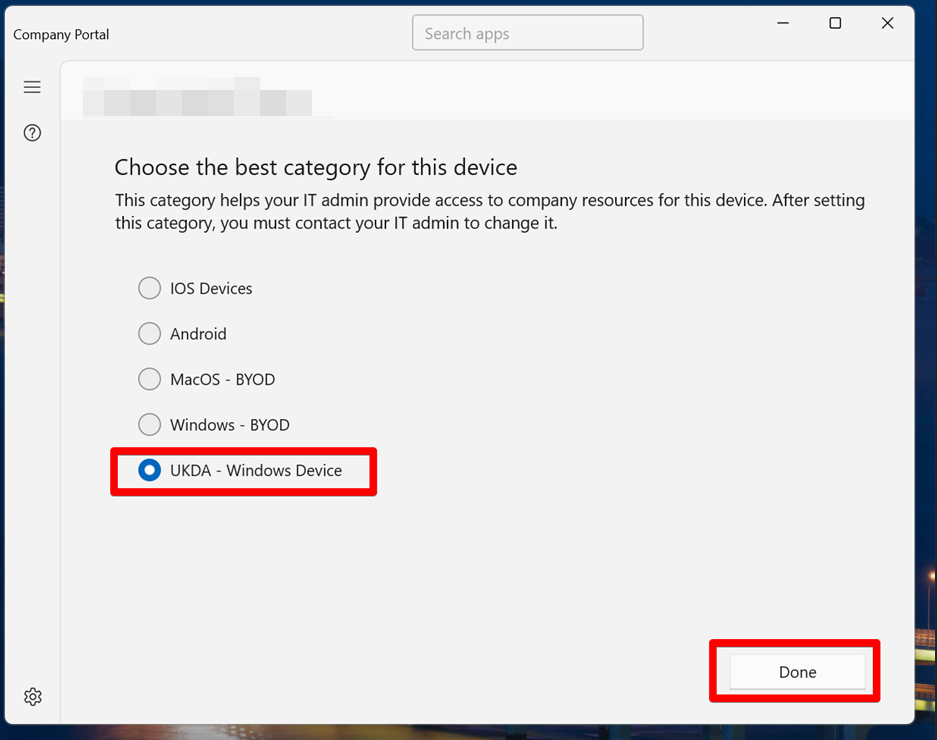
Step 9: Select the category for this device (if unsure, please reach out to Helpdesk)
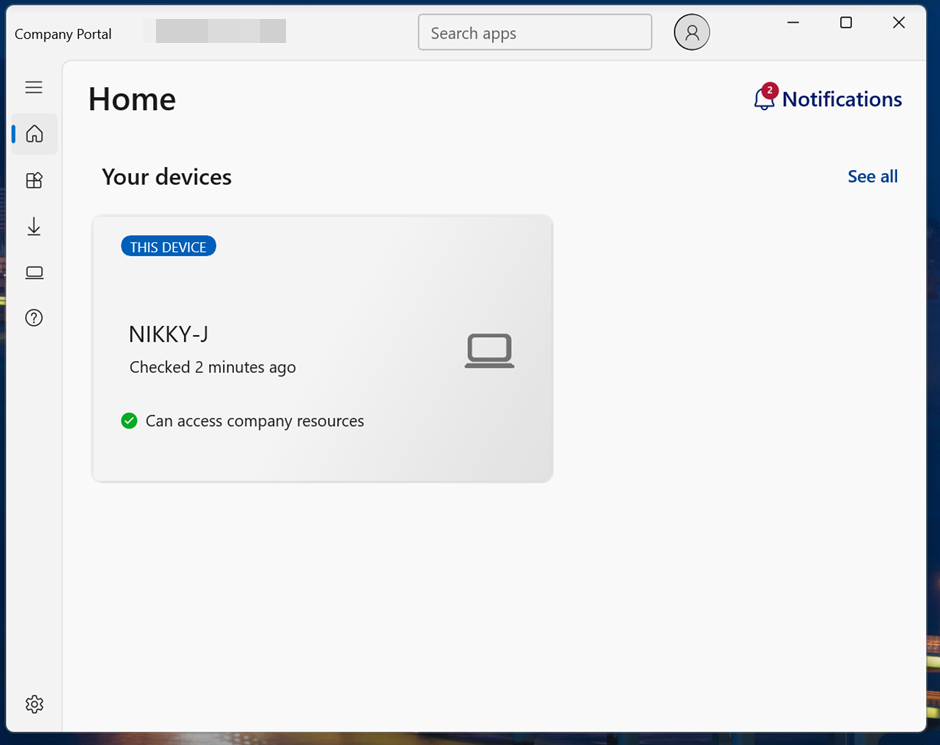
Step 10: Device enrolment successfully completed.
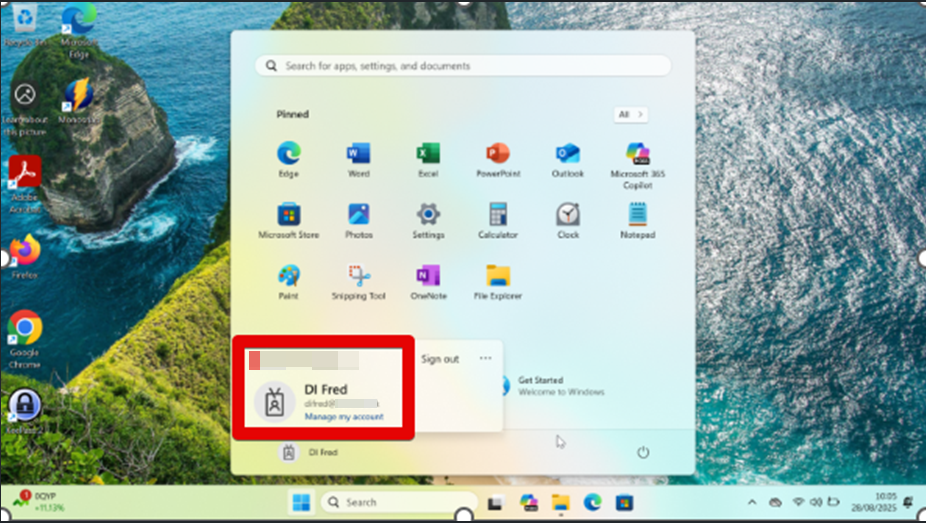
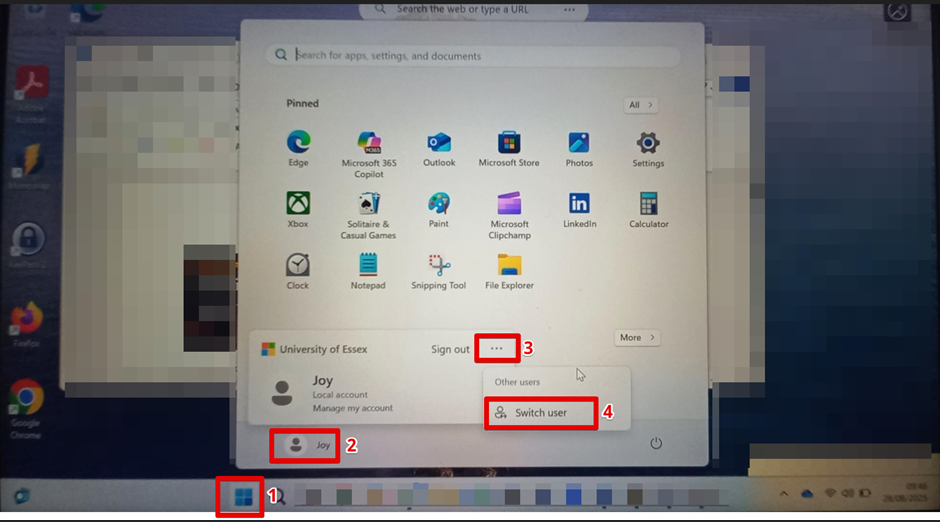
Step 11: You will need to "switch users" to log in to your new Organisation's account on your device. Click “Start” Menu > click your current user account > click three-dot menu > click “Switch user”.
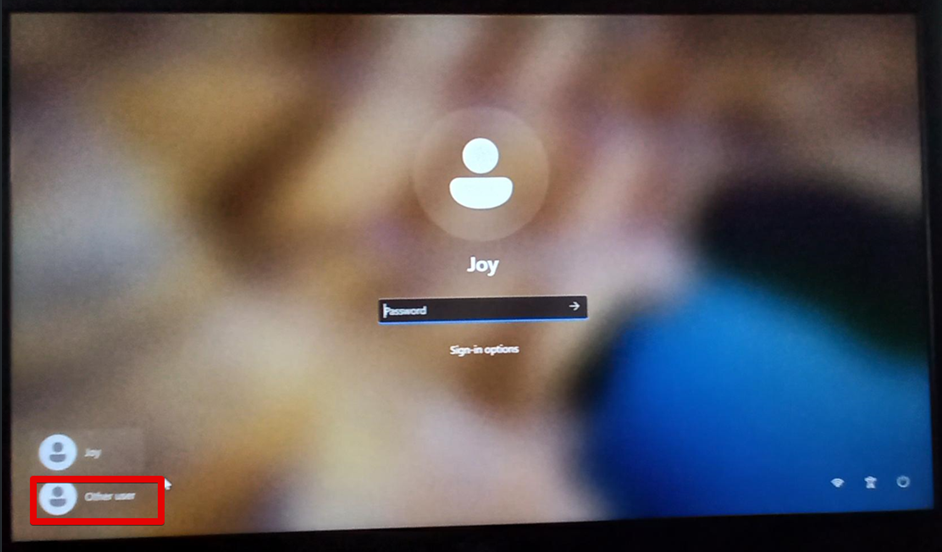
Step 12: Click “Other user” to sign in with your Organisation's domain account.
Step 13: Type in your Organisation's domain account and password.
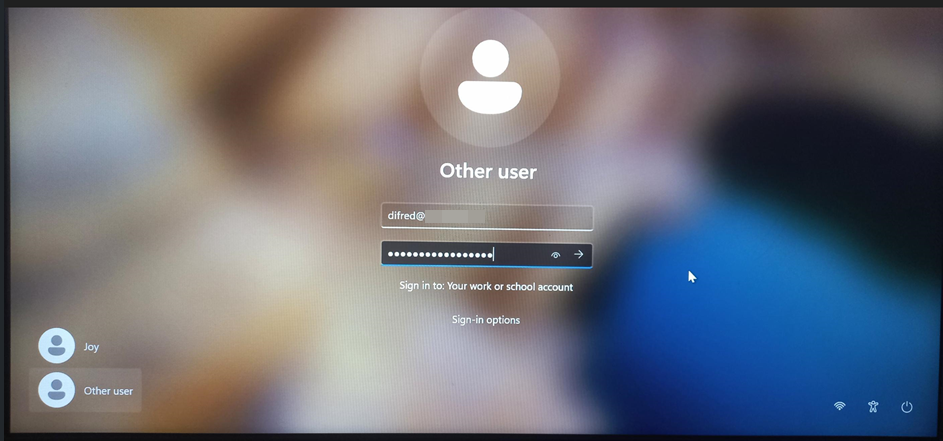
Step 14: Viola, you’re now in.