
WebApp Authentication with Social Identity Providers (Google, Facebook & Apple ID)
Field |
Details |
Document Type |
Runbook / How-To Guide |
Applies To |
Microsoft Entra ID External Identities (CIAM), Social Identity Providers (Google, Facebook, Apple), Third-party Web Applications |
Audience |
Systems Administrators / Identity Engineers / 2nd Line Support |
Author |
AK. Udofeh |
Last Updated |
March 2026 |
Overview
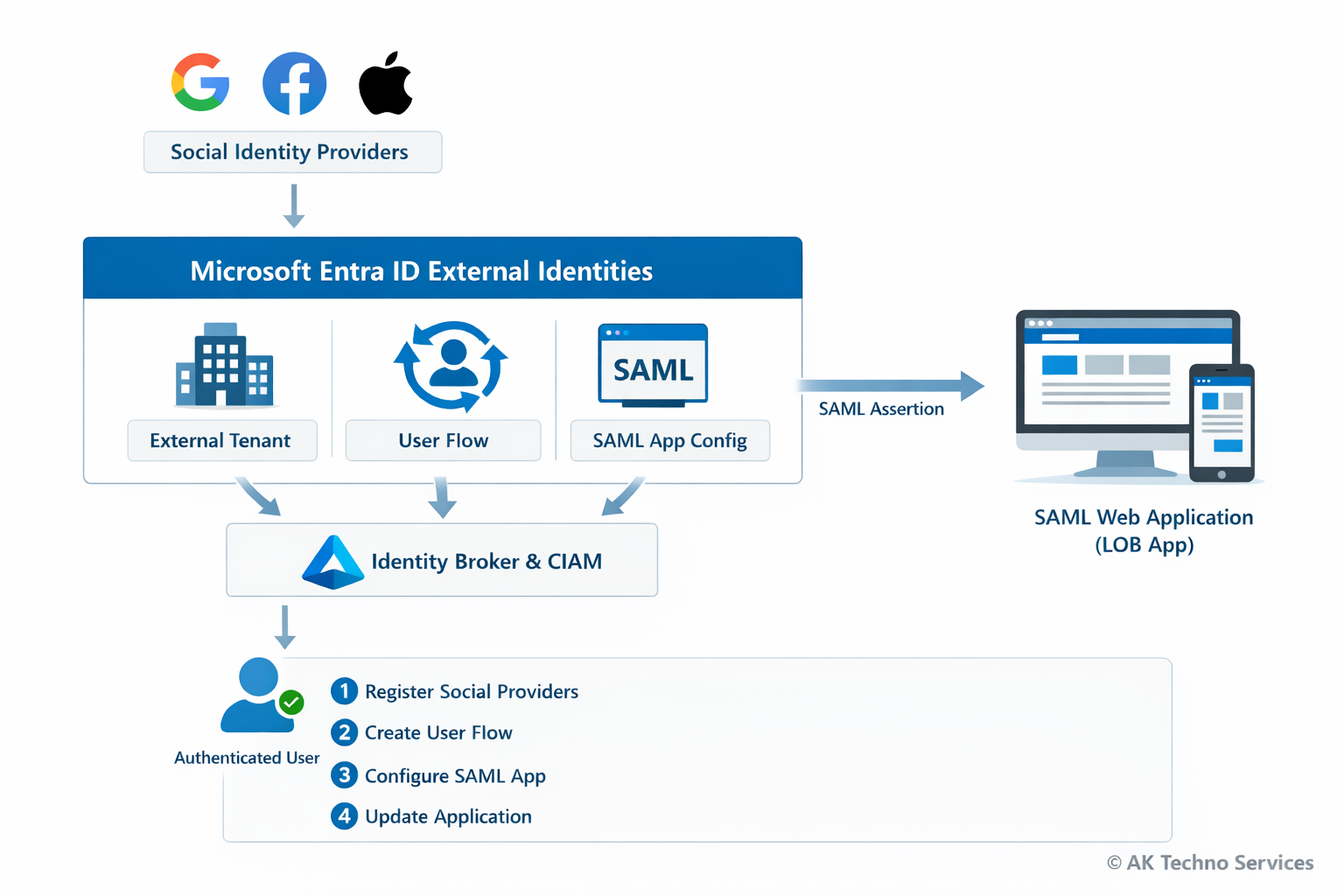
This guide documents how to integrate Social Identity Providers (Google, Facebook, and Apple) with a SAML-based web application for authentication using Microsoft Entra ID External Identities and Customer Identity & Access Management (CIAM). The configuration allows users to authenticate using social accounts while Microsoft Entra acts as the identity broker and issues a SAML assertion to the third-party or line-of-business (LOB) web application.
The process involves creating an external tenant, registering social identity providers, creating a user flow, configuring a SAML enterprise application, and updating the application configuration.
The Issue
Organisations often require users to authenticate using Social Identities (e.g. Google or Facebook) while maintaining a centralised identity broker for security and policy enforcement.
Without a configured identity broker:
-
Applications must integrate individually with each social provider.
-
Identity attributes are inconsistent between providers.
-
Access control and auditing become difficult to manage.
Basic authentication methods such as:
-
Local application accounts
-
Direct OAuth integration within the application
do not provide centralised identity management or federation capabilities.
Using Microsoft Entra External Identities resolves this by brokering authentication from social providers and issuing a standard SAML assertion to the application.
Context
Modern applications often require authentication from multiple identity providers while maintaining centralised access control.
Without a broker, the authentication flow typically looks like this:
User
  ↓
Application
  ↓
Direct OAuth with Google/Facebook
This causes several issues:
-
Applications must implement provider-specific authentication logic
-
Identity attributes differ between providers
-
Access control cannot be centrally enforced
Using Microsoft Entra External Identities introduces an identity broker layer:
User
  ↓
Google / Facebook / Apple
  ↓  (OAuth / OIDC)
Microsoft Entra External Tenant (CIAM)
  ↓  (User Flow)
Enterprise Application (SAML)
  ↓
Flask Web Application
In this architecture:
Before You Start
Check |
Where |
|---|---|
External tenant created |
Microsoft Entra admin centre |
Azure subscription linked |
Tenant creation wizard |
Google Developer Console account |
console.cloud.google.com |
Meta Developer account |
developers.facebook.com |
Apple Developer account (optional) |
developer.apple.com |
SAML web application deployed |
Flask service |
Service Provider metadata configured |
|
Implementation Steps (Per Environment)
Phase 1 - Create External Tenant
Step 1: Sign in to the Microsoft Entra admin centre:
https://entra.microsoft.com
Navigate to:
Microsoft Entra ID> Overview> Manage TenantsClick:
Create> ExternalEnter the tenant details:
Tenant Name: <Your tenant name>
Domain Name: <Your domain name>
Location: Europe or Africa
Subscription: Azure subscription
Click:
Review + Create> CreateProvisioning may take up to 30 minutes.
Switch to the new tenant:
Settings> Directories + Subscriptions> SwitchPhase 2 - Add Social Identity Providers
Navigate to:
External Identities
> All Identity Providers
Google Identity Provider
Step 1: Configure Google OAuth
In Google Cloud Console:
APIs & Services
> Credentials
> OAuth2 Client ID
Fill in the Name of the Webapp
Add the Authorized redirect URI:
https://<tenant-subdomain>.ciamlogin.com/<tenant-subdomain>.onmicrosoft.com/federation/oauth2Copy the following values and keep is save
> Client ID
> Client Secret
Step 2: Register Google as Idp in Entra ID
Navigate to:
External Identities
> All Identity Providers
Enter:
Client ID
Client Secret
Click:
SaveFacebook Identity Provider
Step 1: Create Meta Developer App
Navigate to:
https://developers.facebook.com
Select:
My Apps > Create AppChoose:
Authenticate and request data from users with Facebook LoginSelect platform:
WebAdd redirect URI:
https://<tenant-subdomain>.ciamlogin.com/<tenant-subdomain>.onmicrosoft.com/federation/oauth2In App Settings > Basic, copy:
App ID
App Secret
Add application domain:
<your domain here> (e.g: example.com)Without adding the domain, Facebook login will fail with: "Can't load URL — domain isn't included in the app's domains"