
Entra ID Self-Service Password Reset (SSPR) Implementation
|
Field |
Details |
|
Document Type |
How-To Guide: Enterprise Implementation Runbook |
|
Applies To |
Microsoft Entra ID, Microsoft Entra Connect Sync, Microsoft 365 |
|
Audience |
Identity Engineers / Entra ID Administrators / Systems Administrators |
| Author |
AK. Udofeh |
|
Last Updated |
March 2026 |
Overview
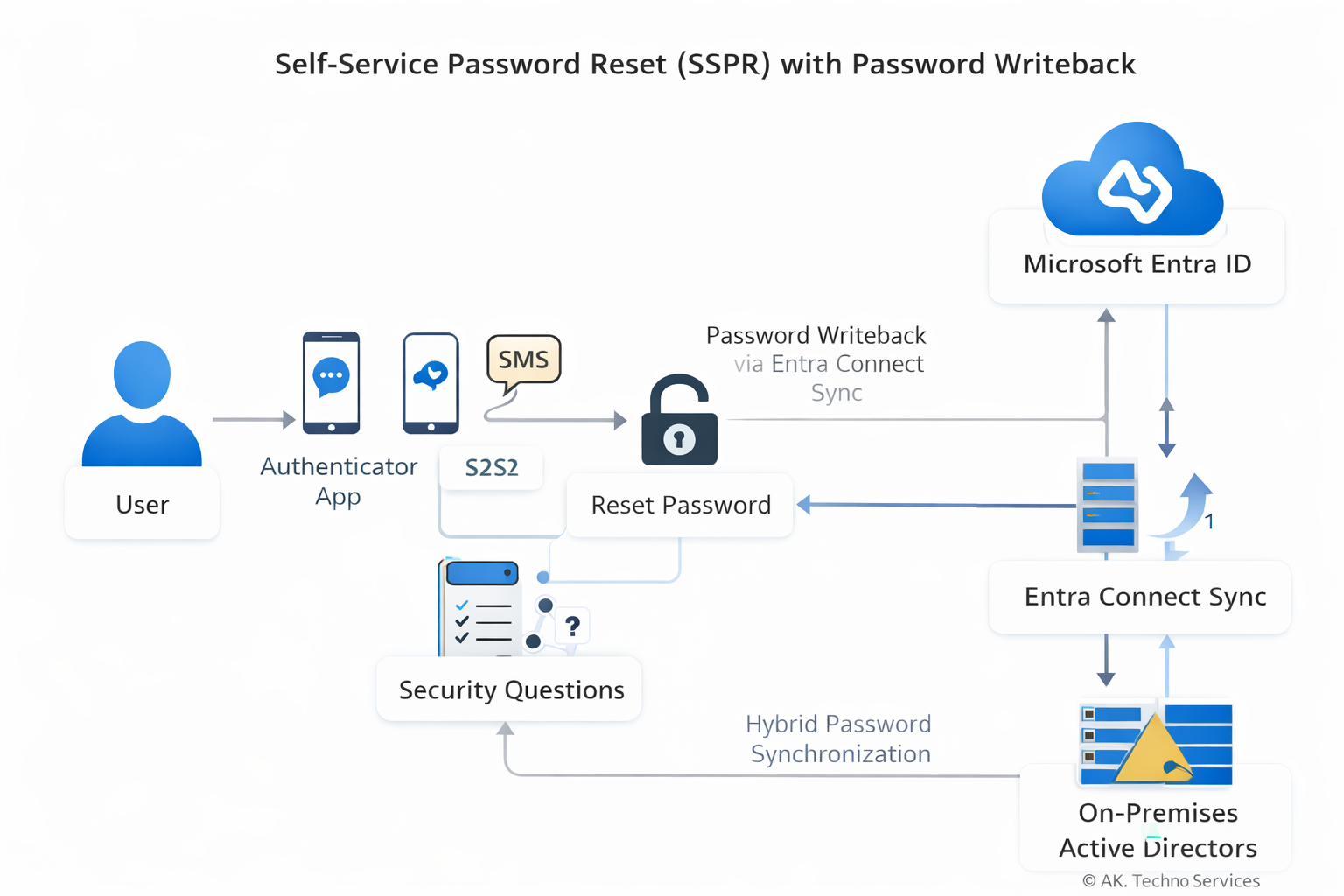
This document provides a complete runbook for implementing Self-Service Password Reset (SSPR) in Microsoft Entra ID within an enterprise environment using Entra Connect Sync with Password Writeback. The guide walks through prerequisites, configuration steps, authentication method setup, hybrid password writeback, monitoring, and troubleshooting.
The configuration enables users and administrators to reset their own passwords securely using Microsoft Authenticator, SMS, and Security Questions, with passwords written back to on-premises Active Directory.
The Issue
In organisations without Self-Service Password Reset enabled:
-
Users must contact the Service Desk to reset forgotten passwords.
-
Password resets generate high ticket volume.
-
Account lockouts reduce productivity.
-
Password resets outside support hours may delay business operations.
Common symptoms in such environments include:
-
Frequent password reset tickets.
-
Users locked out of Microsoft 365 services.
-
Helpdesk manually resetting passwords in Active Directory Users and Computers (ADUC).
Basic remediation steps such as:
-
Clearing browser cache
-
Waiting for lockout timers
-
Logging into another device
do not resolve the underlying issue, because the problem is structural: users lack a secure self-service mechanism.
Context
The root cause is the absence of Self-Service Password Reset capability integrated with the organisation’s identity infrastructure.
In hybrid identity environments, password changes must occur across two identity planes:
User → Entra ID Authentication
       ↓
SSPR Validation (Authenticator / SMS / Questions)
       ↓
Entra ID Password Reset Engine
       ↓
Password Writeback via Entra Connect
       ↓
On-Prem Active Directory Password Update
       ↓
Password Sync Back to Entra ID
Normal Process (with SSPR)
-
User initiates password reset.
-
Entra ID verifies identity using configured authentication methods.
-
Password reset is approved.
-
Password writeback sends the new password to on-prem AD.
-
Entra Connect synchronises the updated password hash.
What Breaks Without SSPR
-
Users cannot reset passwords independently.
-
Password resets must be performed by administrators.
-
Hybrid environments create delays due to manual intervention.
Known Triggers for Password Reset Demand
-
Password expiry policies.
-
Account lockout thresholds.
-
New device sign-ins triggering authentication.
-
VPN credential usage.
-
Conditional Access enforcing re-authentication.
Before You Start
| Check | Where |
|---|---|
| Entra ID P1 or P2 licenses assigned | Microsoft 365 Admin Center |
| Microsoft Entra Connect Sync installed | On-prem identity server |
| Password Writeback feature enabled | Entra Connect configuration |
| Hybrid identity synchronisation healthy | Entra Connect Health |
| Security group created for SSPR pilot scope | Entra ID → Groups |
| Users registered for authentication methods | Security Info portal |
| Required firewall ports open | Identity infrastructure |
Implementation steps
Step 1: Create the SSPR Security Group
1. Open the Microsoft Entra Admin Center
https://entra.microsoft.comIdentity > Groups3. Select New Group
Configuration:
| Setting | Value |
|---|---|
| Group Type | Security |
| Name | SSPR-Enabled-Users |
| Membership | Assigned |
4. Add users who should have SSPR enabled.
This group will be used to scope the SSPR policy.
Step 2: Enable Self-Service Password Reset
Entra ID > Password Reset| Setting | Value |
|---|---|
| Self Service Password Reset Enabled | Selected |
| Selected Group | SSPR-Enabled-Users |
Save the configuration.
Step 3: Configure Authentication Methods
Entra ID > Authentication Methods| Method | Enabled |
|---|---|
| Microsoft Authenticator | Enabled |
| SMS | Enabled |
| Email OTP | Enabled |
Choose and enable all required Auth methods and add the Entra ID group with the SSPR-Enabled-Users group to the policy.
Entra ID > Password Reset > Authentication Methods| Setting | Value |
|---|---|
| Number of methods required | 1 |
Choose the desired number of authentication methods required to reset a password and save.
Step 4: Enable Password Writeback
Open the Microsoft Entra Connect Windows Server.
Launch:
Azure AD ConnectSelect:
Configure → Customize synchronization optionsDuring configuration:
Enable:
Password writeback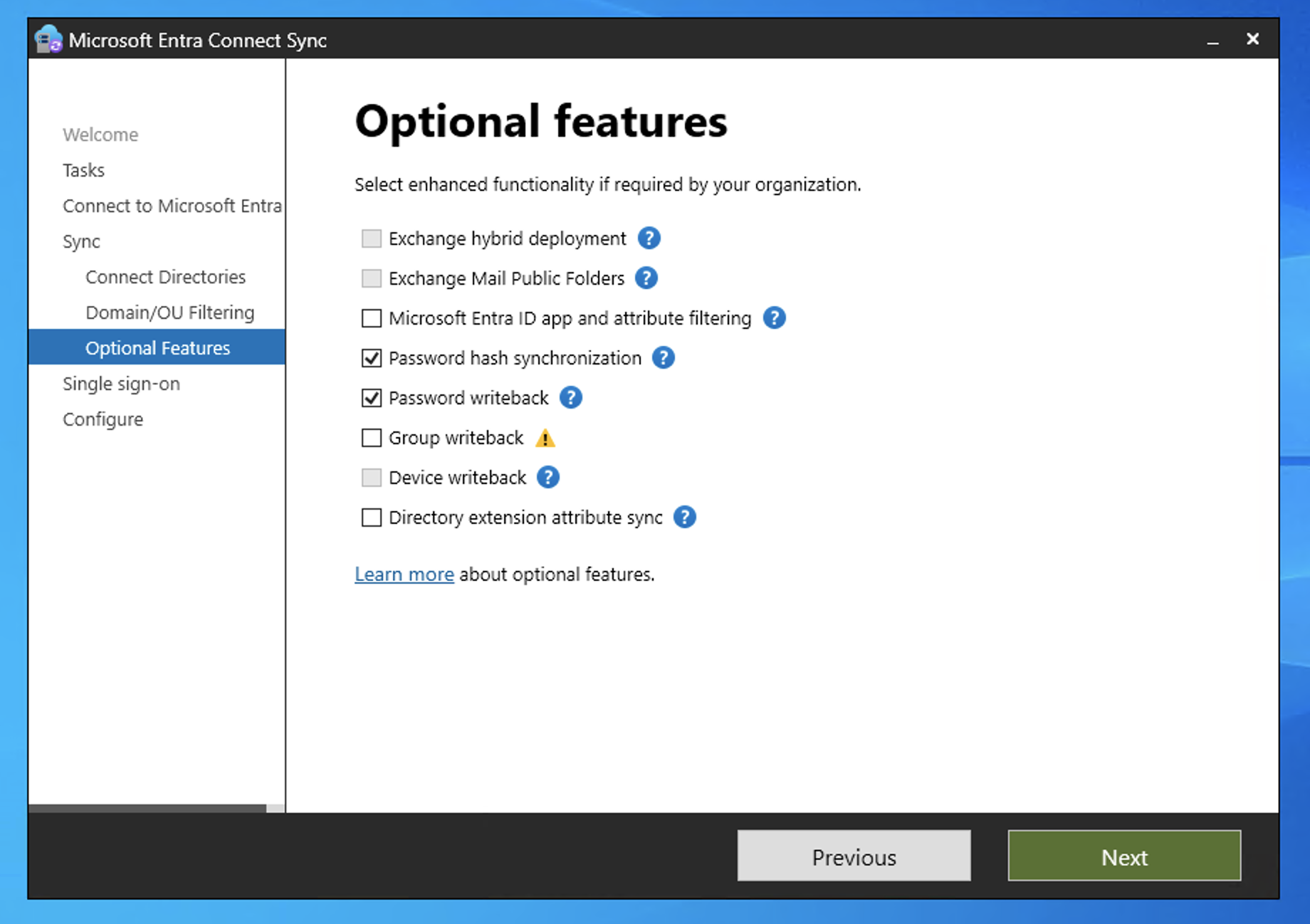
Complete the configuration wizard.
Verify status in:
Entra Admin Center
Identity → Hybrid Management → Entra Connect
Password writeback must show Enabled.
Step 5: Enable Administrator SSPR
Entra ID > Password Reset > Administration PolicyAdministrators require stricter security.
Recommended configuration:
| Setting | Value |
|---|---|
| Number of authentication methods required | 2 |
| Allowed methods | Authenticator, SMS |
Security questions are not recommended for administrators.
Step 6: Verify Combined Security Information Registration
Combined registration allows users to configure MFA and Self-Service Password Reset authentication methods in a single workflow.
Entra ID > Authentication Methods > SettingsVerify the tenant is using the modern Authentication Methods policy framework.
If the Combined registration toggle is not visible, the feature is already enabled by Microsoft and no further configuration is required.
User registration portal:
https://aka.ms/mysecurityinfoUsers will register the following methods during onboarding:
-
Microsoft Authenticator
-
SMS verification
-
Security questions (if enabled in SSPR policy)
This portal supports both MFA and SSPR authentication method registration.
Step 7: Configure User Notification Settings
Password Reset > NotificationsRecommended configuration:
| Setting | Value |
|---|---|
| Notify users on password reset | Enabled |
| Notify admins on admin password reset | Enabled |
==================================== Monitoring and Reporting ==============================
Entra Audit Logs
Entra Admin Center
Password reset > Audit Logs
Filter for:
Activity: Self-service password resetEvents recorded:
-
Password reset initiated
-
Password reset completed
-
Password writeback success/failure
Sign-In Logs
Password reset > Audit LogsReview authentication challenges and method usage.
SSPR Usage Reports
Entra ID > Password Reset > Usage & InsightsMetrics include:
| Metric | Description |
|---|---|
| Password resets | Total resets performed |
| Registrations | Users who registered authentication methods |
| Success rate | Successful resets vs attempts |
These reports help measure adoption and identify issues.
============================Troubleshooting=====================
Password Writeback Failed
Error example:
Password reset failed to write back to on-premises directoryPossible causes:
-
Entra Connect not running
-
Password writeback disabled
-
Domain controller connectivity issues
Resolution:
-
Verify Entra Connect service status.
-
Confirm writeback is enabled.
-
Check Event Viewer - Application Logs on the Entra Connect server.
User Not Allowed to Reset Password
Possible cause:
User not included in the SSPR security group.
Resolution:
-
Add the user to the SSPR group.
-
Wait for directory replication.
User Not Registered for Authentication
Error example:
You need to register for password resetResolution:
Direct the user to:
https://aka.ms/mysecurityinfo
https://aka.ms/mysecurityinfoComplete registration before attempting password reset.
Administrator Reset Fails
Possible cause:
Administrator policy requires stronger authentication.
Resolution:
Ensure the administrator has registered:
-
Microsoft Authenticator
-
SMS
Expected Outcome
| Metric | Result |
|---|---|
| Resolution Time | Immediate user password reset |
| User Impact | Reduced helpdesk dependency |
| Recurrence Risk | Low once authentication registration is completed |