
Google Workspace to Exchange Online Mail Migration
| Field |
Details |
|
Document Type |
Google Workspace to Exchange Online Mail Migration |
|
Applies To |
Exchange Online, Google Workspace, Google API, Google Cloud |
|
Audience |
Systems Administrator / IT Engineer |
|
Author |
AK. Udofeh |
|
Last Updated |
May 2026 |
 Overview
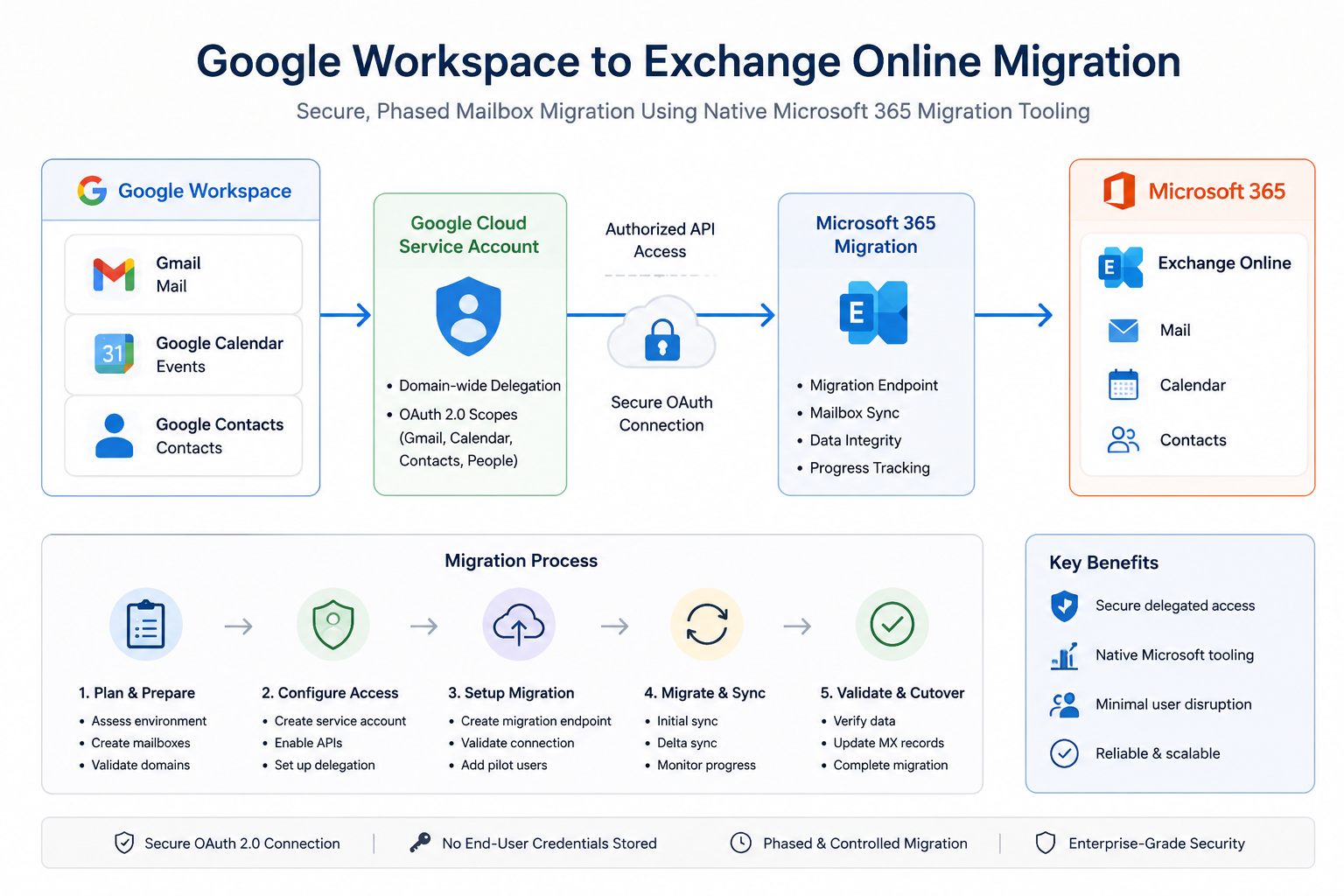
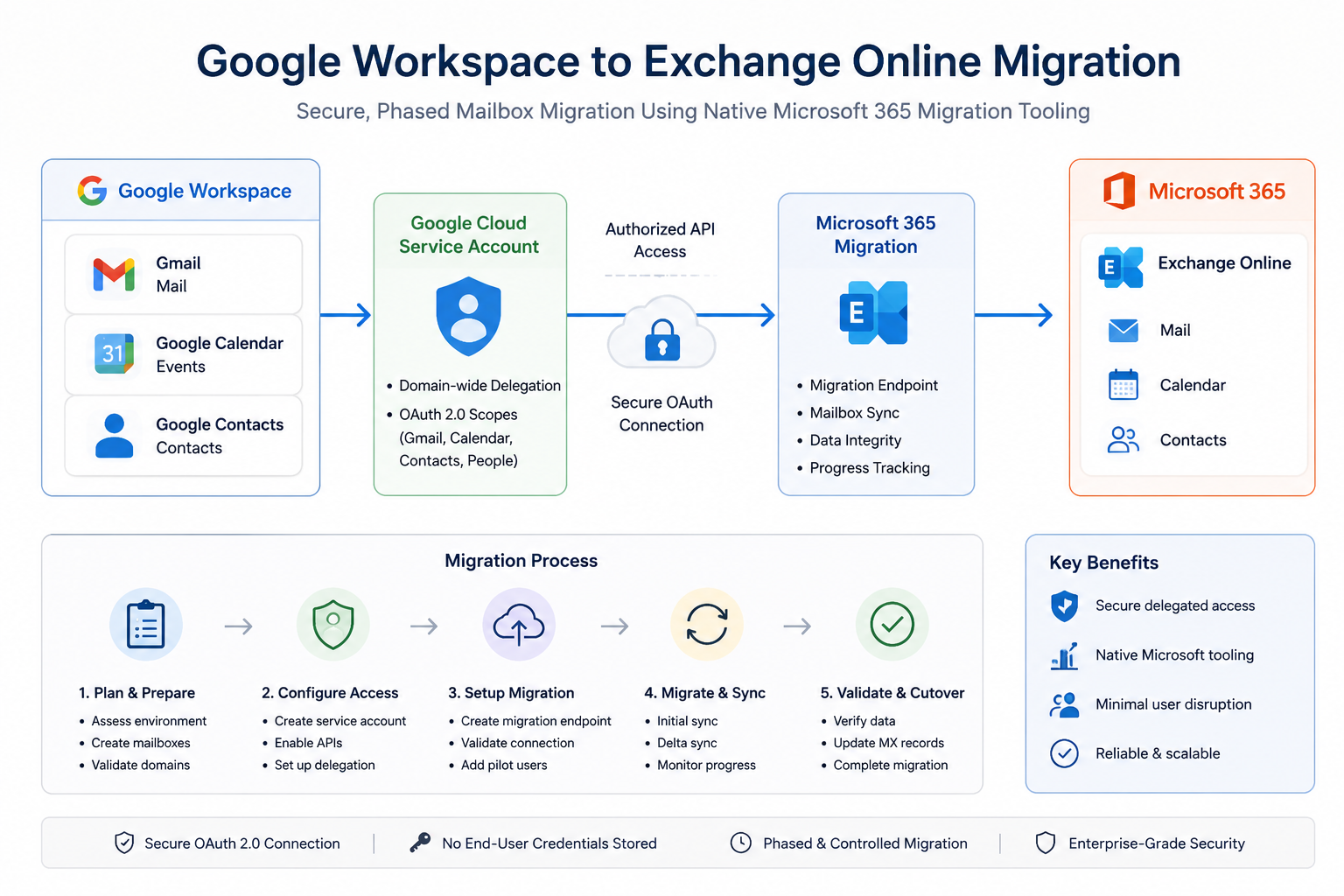
This configuration enables mailbox migration from Google Workspace (Gmail) to Microsoft Exchange Online using the native migration functionality built into the Exchange Admin Center (EAC).
The migration process uses a Google Cloud service account with delegated access to securely read Gmail, Calendar, and Contacts data from Google Workspace and import it into Microsoft 365 mailboxes.
This approach is important because it:
- Enables centralized migration management from Microsoft 365
- Supports staged or pilot migrations
- Minimises manual mailbox export/import operations
- Preserves mail, calendars, and contacts during migration
The configuration mitigates risks associated with:
- Manual PST exports
- Incomplete mailbox migrations
- Credential sharing
- Unsecured mailbox access methods
Prerequisites
Required Licenses
Microsoft 365
- Exchange Online Plan 1 or higher
- Microsoft 365 Business Premium / E3 / E5 recommended
Google Workspace
- Google Workspace Business or Enterprise subscription
- Super Admin access required
Required Roles & Permissions
Microsoft 365
The administrator performing the migration requires:
- Exchange Administrator
or - Global Administrator
Google Workspace
The administrator requires:
- Super Admin role
Dependencies
The following services must be accessible:
- Exchange Online
- Google Workspace Admin Console
- Google Cloud Console
Preparation Tasks
Before beginning:
- Create Microsoft 365 mailboxes for all users being migrated
- Verify domains in Microsoft 365
- Ensure users have Exchange Online licenses assigned
- Confirm mailbox sizes and available storage
- Plan migration window and user communication
Step 1: Configure Google Cloud Service Account
Create Google Cloud Project
https://console.cloud.google.com/
Create a new project.
Example:
M365Migration
Create Service Account
IAM & Admin → Service Accounts
Select:
Create Service Account
Example service account name:
exchange-migration
Select:
- Create
- Done
Enable Domain-Wide Delegation
Open the newly created service account.
Details > Show Domain-wide Delegation
Enable:
Enable Google Workspace Domain-wide Delegation
Enter a product name:
Exchange Migration
Save the configuration.
Record the Client ID
Within the service account:
- Copy the Unique ID / Client ID
- Save it securely
This ID will later be used for delegated access configuration.
Create JSON Key
Keys > Add Key > Create New Key
Select
- JSON
Download and securely store the JSON key file.
Treat this file as sensitive credential material.
Step 2: Configure Google Workspace Delegated Access
Google Admin Console > Security > Access and Data Control > API Controls
Select:
Manage Domain Wide Delegation
Select:
Add New
Configure Delegated Access
Client ID
Paste the service account Client ID copied earlier.
OAuth Scopes
Enter the following scopes exactly as shown:
https://mail.google.com/,https://www.googleapis.com/auth/calendar,https://www.google.com/m8/feeds/,https://www.googleapis.com/auth/gmail.settings.sharing,https://www.googleapis.com/auth/contacts
Important:
- Do not add spaces
- Use comma-separated format only
- Incorrect scopes will cause migration failures later
Select:
Step 3 — Enable Required Google APIs
In the Project page, navigate to:
https://console.cloud.google.com/apis/library
Ensure the correct migration project is selected.
Click Enable API Services and enable the following APIs:
|
API |
Required |
|
Gmail API |
Yes |
|
Google Calendar API |
Yes |
|
Contacts API |
Yes |
|
People API |
Yes |
Step 4: Configure Migration Endpoint in Exchange Online
Exchange Admin Center > Migration
Select:
Add Migration Batch
Migration Path
Choose:
Google Workspace (Gmail)
Migration Endpoint Configuration
Email Address
Enter a Google Workspace Super Admin account.
Example:
Do not use the service account email address.
JSON Key File
Upload the downloaded JSON key file created earlier.
Verification
If endpoint validation repeatedly fails:
- Enable Skip Verification
- Continue with pilot migration testing
Google propagation delays may cause temporary validation failures.
Step 5: Access Control / Enforcement
Recommended Migration Scope
For production safety:
- Begin with pilot users only
- Avoid immediate tenant-wide migration
Recommended pilot group:
- IT administrators
- Test users
- Low-risk business users
Recommended Mail Flow Strategy
During migration:
- Keep Google Workspace as primary mail delivery platform
- Do not switch MX records immediately
Switch MX records only after:
- Mailbox validation
- User acceptance testing
- Successful pilot migration completion
Step 6: Testing / Report Mode
Recommended Pilot Migration Process
Migrate:
- One mailbox initially
- Validate data integrity
- Confirm permissions and access
Validate Migrated Data
Confirm:
- Emails migrated successfully
- Folder structure preserved
- Calendar items imported
- Contacts available
- Outlook access functional
User Validation
Perform:
- Outlook sign-in testing
- OWA testing
- Mobile device testing
Step 7: Monitoring & Validation
Exchange Online Monitoring
Exchange Admin Center > Migration
Monitor:
- Batch status
- Sync progress
- Failed items
- Skipped items
Google Workspace Validation
Validate:
- API access remains active
- Service account remains enabled
- Delegation settings remain configured
Common Issues to Monitor
|
Issue |
Likely Cause |
|
Endpoint validation failure |
Propagation delay |
|
Authentication failure |
Incorrect OAuth scopes |
|
Mailbox sync failure |
API not enabled |
|
Permission denied |
Delegation not configured |
|
Rate limiting |
Excessive retry attempts |
Step 8: Enforcement / Go-Live
Once migration validation is complete:
Finalize Migration
Complete:
- Final synchronization
- User sign-off
- Mail flow cutover
Update MX Records
Point MX records to Microsoft 365.
Example Microsoft MX target:
<tenant>.mail.protection.outlook.com
Post-Cutover Tasks
Perform:
- Outlook profile validation
- Mobile device reconfiguration
- DNS validation
- Mail flow testing
Important Considerations
Propagation Delays
Google delegation and API changes may take:
- 15 minutes to 24 hours
Temporary failures during this period are expected.
Service Account Security
The JSON key file provides privileged access.
Recommendations:
- Store securely
- Restrict administrator access
- Delete unused keys after migration
Verification Failures
Microsoft endpoint verification may intermittently fail even when configuration is correct.
Where necessary:
- Use Skip Verification
- Validate with pilot migrations
Large Mailboxes
Large Gmail mailboxes may:
- Take several hours
- Experience throttling
- Require staged synchronization
Best Practices
Security Recommendations
- Use dedicated migration admin accounts
- Restrict service account access
- Remove unused delegation after migration completion
- Rotate or delete JSON keys post-migration
Operational Recommendations
- Start with pilot users
- Avoid weekend cutovers without validation
- Maintain rollback capability during migration
- Document all DNS changes
Migration Recommendations
- Migrate mailboxes in batches
- Validate each batch before proceeding
- Communicate migration timelines clearly to users
Summary
This implementation configured secure mailbox migration from Google Workspace to Exchange Online using Microsoft’s built-in Google Workspace migration functionality.
The process included:
- Google Cloud service account creation
- API enablement
- Domain-wide delegation
- Exchange Online migration endpoint configuration
- Pilot migration validation
- Controlled production rollout
Following this approach provides a secure, enterprise-ready migration process while minimising disruption, authentication issues, and mailbox migration failures.