# HOW TO: Export & Import Microsoft Edge Browser Password

<table class="MsoNormalTable" id="bkmrk-field-details-docume" title=""><tbody><tr><td>**Field**

</td><td>**Details**

</td></tr><tr><td>Document Type

</td><td>How-To Guide - Export &amp; Import MS Edge browser Password Runbook

</td></tr><tr><td>Applies To

</td><td>Browser

</td></tr><tr><td>Audience

</td><td>End-users

</td></tr><tr><td>Author

</td><td>AK. Udofeh

</td></tr><tr><td>Last Updated

</td><td>September 2025

</td></tr></tbody></table>

##### **Overview**

This document outlines steps to export and import Microsoft Edge browser passwords (the passwords you’ve saved in your Edge browser) before joining your device to Entra ID (Azure AD) or before switching to a new device.

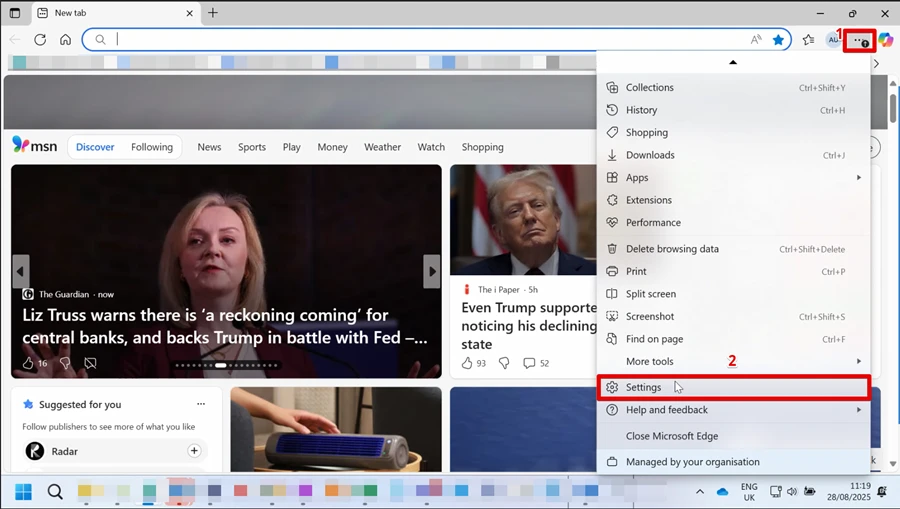
**Step 1: Open Edge &gt; Settings and more (⋯) &gt; Settings.**

[![image.png](https://docs.aktechnoservices.com/uploads/images/gallery/2026-03/scaled-1680-/x5pimage.png)](https://docs.aktechnoservices.com/uploads/images/gallery/2026-03/x5pimage.png)

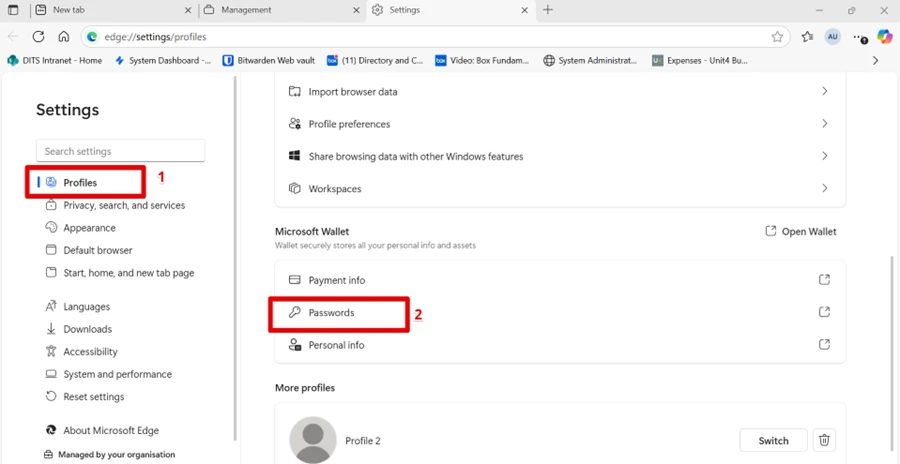
**Step 2: Go to Profiles &gt; Passwords.**

[![image.png](https://docs.aktechnoservices.com/uploads/images/gallery/2026-03/scaled-1680-/xZNimage.png)](https://docs.aktechnoservices.com/uploads/images/gallery/2026-03/xZNimage.png)

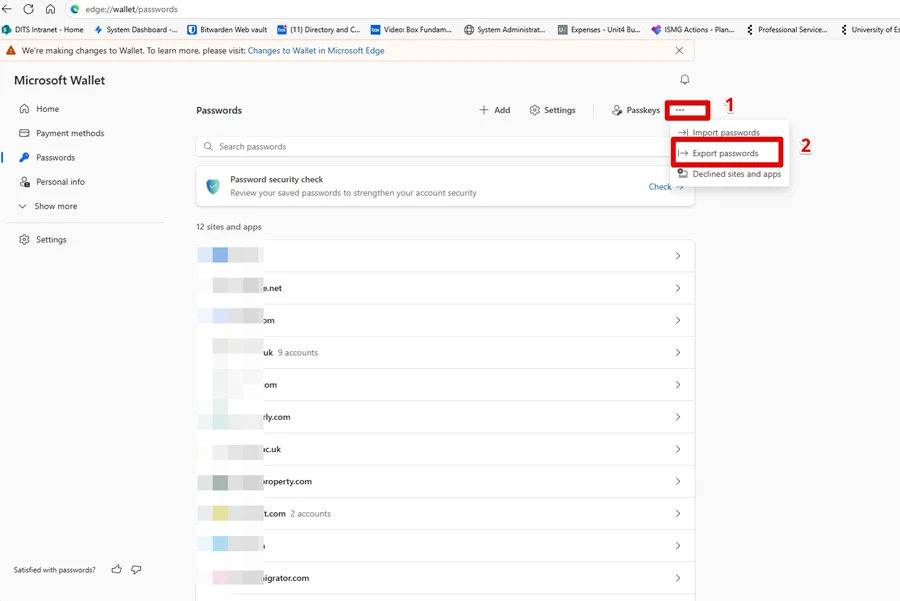
**Step 3: Click the three dots (…) &gt; Export passwords.**

[![image.png](https://docs.aktechnoservices.com/uploads/images/gallery/2026-03/scaled-1680-/qDgimage.png)](https://docs.aktechnoservices.com/uploads/images/gallery/2026-03/qDgimage.png)

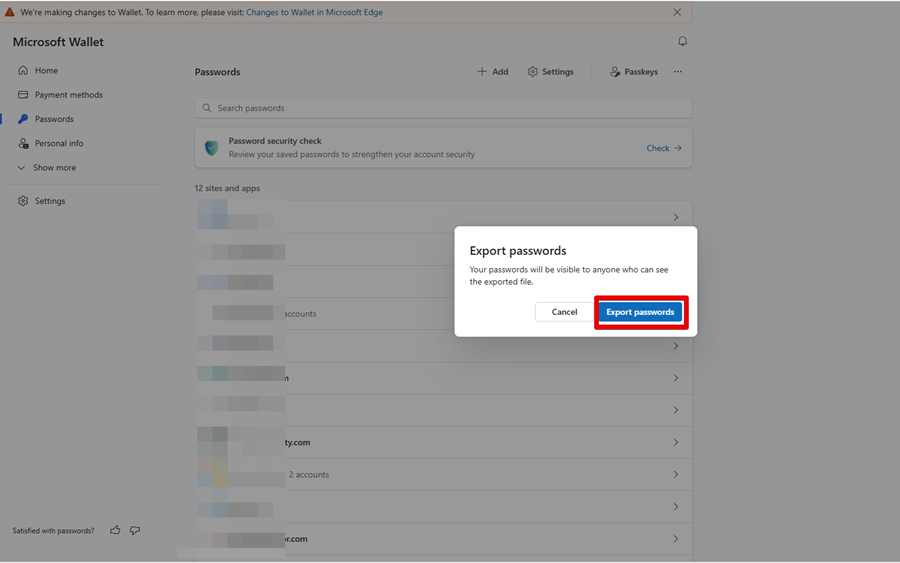
**Step 4: Click “Export passwords” to confirm you want to proceed.**

[![image.png](https://docs.aktechnoservices.com/uploads/images/gallery/2026-03/scaled-1680-/6dYimage.png)](https://docs.aktechnoservices.com/uploads/images/gallery/2026-03/6dYimage.png)
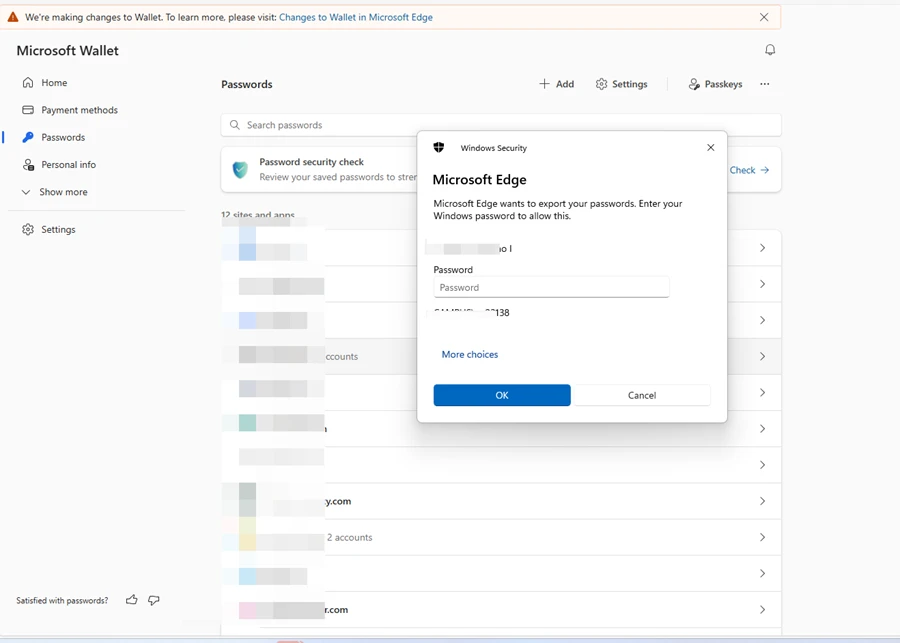
**Step 5: Confirm with your credentials &gt; save the .csv somewhere safe. (You may want to save it in OneDrive or Box)**

[![image.png](https://docs.aktechnoservices.com/uploads/images/gallery/2026-03/scaled-1680-/Lzgimage.png)](https://docs.aktechnoservices.com/uploads/images/gallery/2026-03/Lzgimage.png)
=======================================================================================

##### **HOW TO: Restore or Import Microsoft Edge Browser Passwords**<span class="heading-anchor-wrapper" role="presentation"><button aria-hidden="false" aria-label="Copy link to" aria-labelledby="219e1c6f-d13a-446a-b2bb-f12f7db70888 HOW-TO:-Restore-or-Import-Microsoft-Edge-Browser-Passwords" class="css-x4slh0" data-testid="anchor-button" id="bkmrk--5" tabindex="0" type="button"><span aria-label="Copy" class="_1e0c1o8l _vchhusvi _1o9zidpf _vwz4kb7n _y4ti1igz _bozg1mb9 _12va1onz _jcxd1r8n" role="img"><svg class="_1reo15vq _18m915vq _syaz1r31 _lcxvglyw _s7n4yfq0 _vc881r31 _1bsbpxbi _4t3ipxbi" fill="none" role="presentation" viewbox="0 0 16 16"><path clip-rule="evenodd" d="M8.22 2.22a3.932 3.932 0 1 1 5.56 5.56l-2.25 2.25-1.06-1.06 2.25-2.25a2.432 2.432 0 0 0-3.44-3.44L7.03 5.53 5.97 4.47zm3.06 3.56-5.5 5.5-1.06-1.06 5.5-5.5zM2.22 8.22l2.25-2.25 1.06 1.06-2.25 2.25a2.432 2.432 0 0 0 3.44 3.44l2.25-2.25 1.06 1.06-2.25 2.25a3.932 3.932 0 1 1-5.56-5.56" fill="currentcolor" fill-rule="evenodd"></path></svg></span></button></span>

Step 1: Open **Edge**.

Step 2: Click the **three dots (…) &gt; Settings &gt; Profiles &gt; Passwords**.

Step 3: Click the **three dots (…)** select “**Import passwords”**.

Step 4: Select the `.csv` password file you exported earlier.

Step 5: Click **Open**.

Step 6: Edge will now import your passwords.

<p class="callout danger">CSV is plain text. Delete it after importing to protect your credentials.</p>