# HOW TO: Export & Import Chrome Browser Bookmarks

<table class="MsoNormalTable" id="bkmrk-field-details-docume" title=""><tbody><tr><td>**Field**

</td><td>**Details**

</td></tr><tr><td>Document Type

</td><td>How-To Guide - Export &amp; Import Chrome Browser Bookmarks Runbook

</td></tr><tr><td>Applies To

</td><td>Browser

</td></tr><tr><td>Audience

</td><td>End-users

</td></tr><tr><td>Author

</td><td>AK. Udofeh

</td></tr><tr><td>Last Updated

</td><td>September 2025

</td></tr></tbody></table>

##### **Overview**

This document outlines steps to export and import your Chrome browser bookmarks before joining your device to Entra ID (Azure AD) or before you switch to a new device.

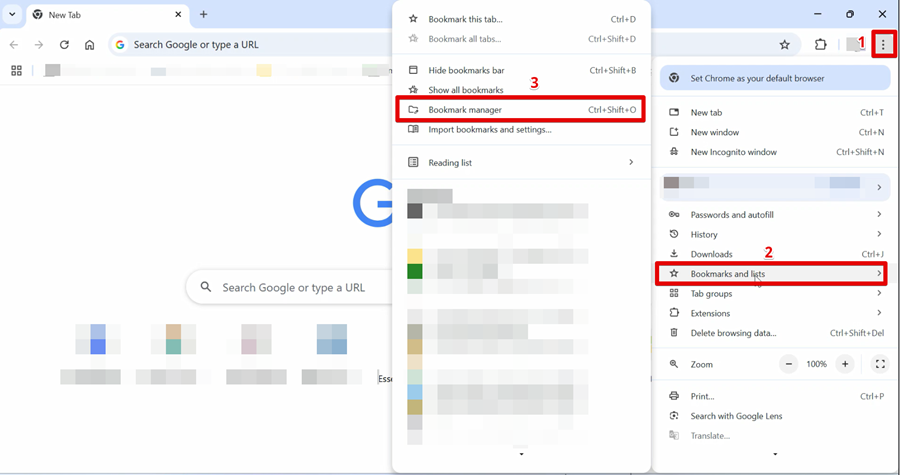
**Step 1: Click the three-dot … menu (top right) &gt; “Bookmarks and lists” &gt; “Bookmarks Manager”.**

[![image.png](https://docs.aktechnoservices.com/uploads/images/gallery/2026-03/scaled-1680-/ZkOimage.png)](https://docs.aktechnoservices.com/uploads/images/gallery/2026-03/ZkOimage.png)

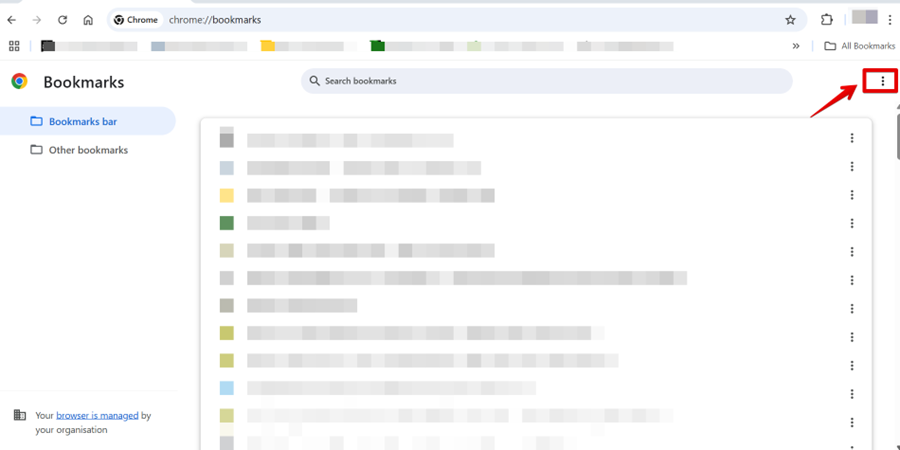
**Step 2: Click ⋯ the three-dot menu**

[![image.png](https://docs.aktechnoservices.com/uploads/images/gallery/2026-03/scaled-1680-/fFSimage.png)](https://docs.aktechnoservices.com/uploads/images/gallery/2026-03/fFSimage.png)
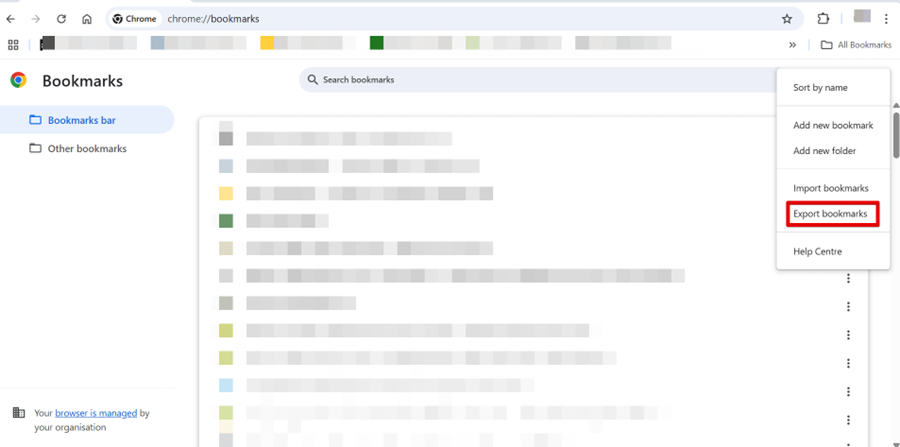
**Step 3: Click “Export bookmarks” &gt; and save the .html file (You may want to save it in OneDrive or Box).**

[![image.png](https://docs.aktechnoservices.com/uploads/images/gallery/2026-03/scaled-1680-/puLimage.png)](https://docs.aktechnoservices.com/uploads/images/gallery/2026-03/puLimage.png)
=======================================================================================

#### HOW TO: Import or Restore Chrome Browser Bookmarks

<div class="renderer-heading-wrapper css-4zleql" data-level="1" data-testid="renderer-heading-wrapper" id="bkmrk--3"><span class="heading-anchor-wrapper" role="presentation"><button aria-hidden="false" aria-label="Copy link to" aria-labelledby="3b13fd27-27e0-443a-b2ea-57b752ca743c HOW-TO:-Import-or-Restore-Chrome-Browser-Bookmarks" class="css-x4slh0" data-testid="anchor-button" id="bkmrk--4" tabindex="0" type="button"><span aria-label="Copy" class="_1e0c1o8l _vchhusvi _1o9zidpf _vwz4kb7n _y4ti1igz _bozg1mb9 _12va1onz _jcxd1r8n" role="img"><svg class="_1reo15vq _18m915vq _syaz1r31 _lcxvglyw _s7n4yfq0 _vc881r31 _1bsbpxbi _4t3ipxbi" fill="none" role="presentation" viewbox="0 0 16 16"><path clip-rule="evenodd" d="M8.22 2.22a3.932 3.932 0 1 1 5.56 5.56l-2.25 2.25-1.06-1.06 2.25-2.25a2.432 2.432 0 0 0-3.44-3.44L7.03 5.53 5.97 4.47zm3.06 3.56-5.5 5.5-1.06-1.06 5.5-5.5zM2.22 8.22l2.25-2.25 1.06 1.06-2.25 2.25a2.432 2.432 0 0 0 3.44 3.44l2.25-2.25 1.06 1.06-2.25 2.25a3.932 3.932 0 1 1-5.56-5.56" fill="currentcolor" fill-rule="evenodd"></path></svg></span></button></span></div>**Step 1:** Open **Chrome**.

**Step 2:** Click the **three dots menu … &gt; Bookmarks and lists &gt; Bookmark manager**.

**Step 3:**  In the Bookmarks page, click the **three dots menu … (top right corner)** choose **Import Bookmarks**

**Step 4:**  Locate your exported `.html` bookmarks file you saved earlier.

**Step 5:** Click **Open**.

**Step 6:**  Your bookmarks will now be restored in Chrome.

<p class="callout danger">Delete HTML files after importing on the new device.</p>