Web Browser Tasks
This Book section holds guides for web browser related tasks
- HOW TO: Export & Import Microsoft Edge Browser Password
- HOW TO: Export & Import Microsoft Edge Browser Bookmarks
- HOW TO: Export & Import Chrome Browser Passwords
- HOW TO: Export & Import Chrome Browser Bookmarks
HOW TO: Export & Import Microsoft Edge Browser Password
|
Field |
Details |
|
Document Type |
How-To Guide - Export & Import MS Edge browser Password Runbook |
|
Applies To |
Browser |
|
Audience |
End-users |
|
Author |
AK. Udofeh |
|
Last Updated |
September 2025 |
Overview
This document outlines steps to export and import Microsoft Edge browser passwords (the passwords you’ve saved in your Edge browser) before joining your device to Entra ID (Azure AD) or before switching to a new device.
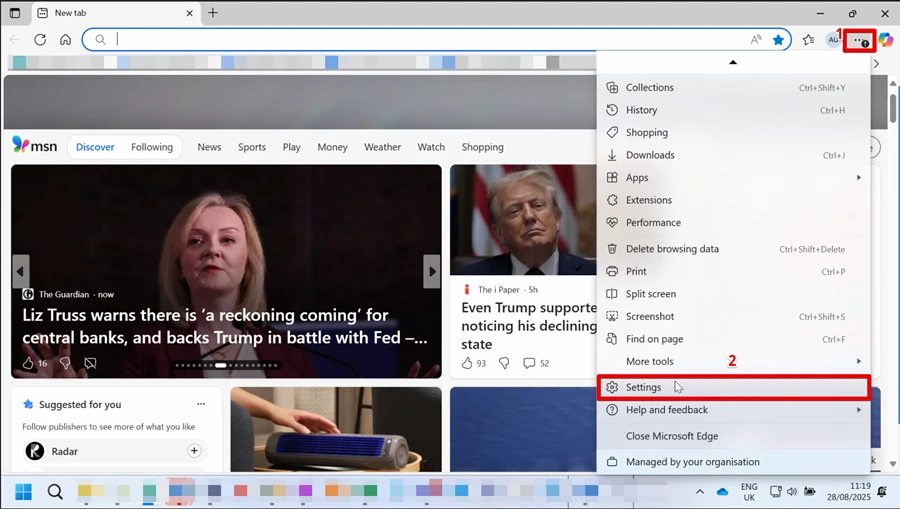
Step 1: Open Edge > Settings and more (⋯) > Settings.
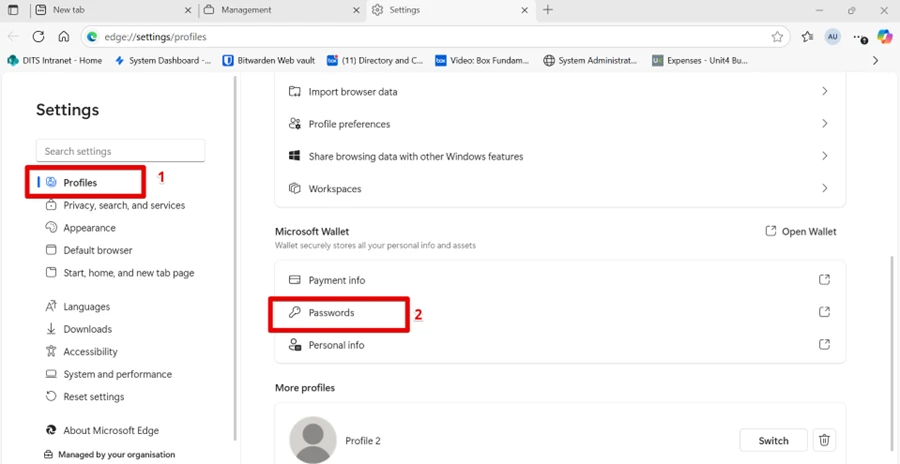
Step 2: Go to Profiles > Passwords.
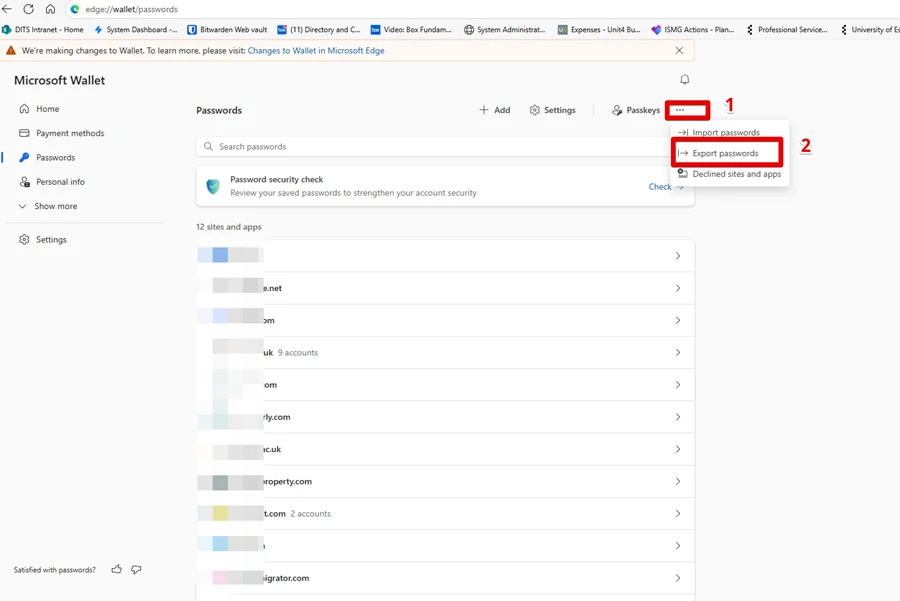
Step 3: Click the three dots (…) > Export passwords.
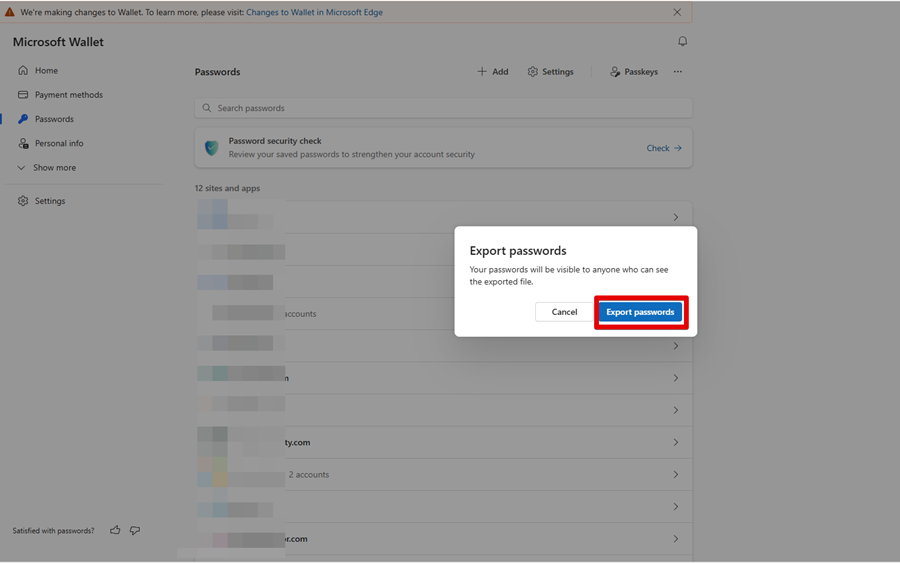
Step 4: Click “Export passwords” to confirm you want to proceed.
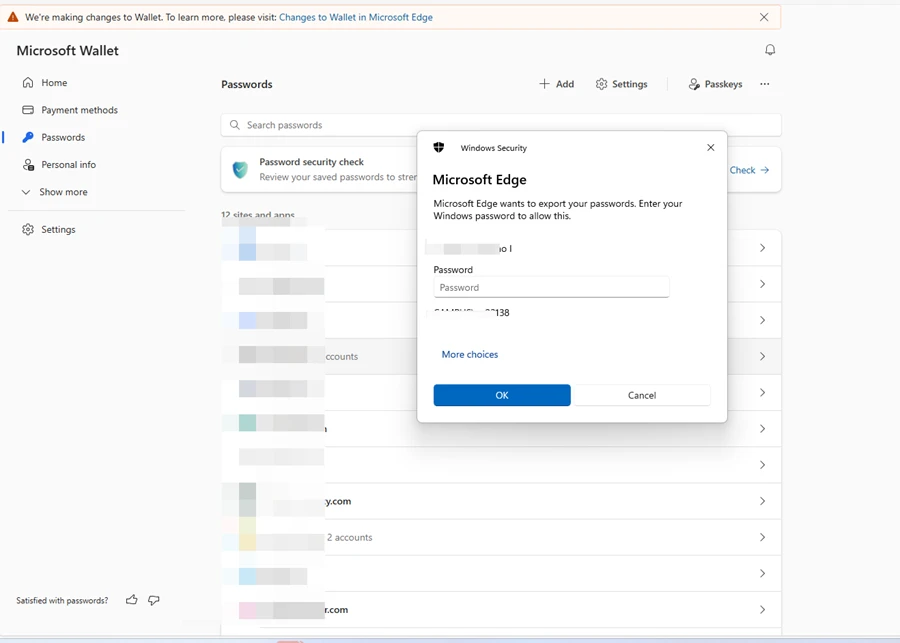
Step 5: Confirm with your credentials > save the .csv somewhere safe. (You may want to save it in OneDrive or Box)
=======================================================================================
HOW TO: Restore or Import Microsoft Edge Browser Passwords
Step 1: Open Edge.
Step 2: Click the three dots (…) > Settings > Profiles > Passwords.
Step 3: Click the three dots (…) select “Import passwords”.
Step 4: Select the .csv password file you exported earlier.
Step 5: Click Open.
Step 6: Edge will now import your passwords.
CSV is plain text. Delete it after importing to protect your credentials.
HOW TO: Export & Import Microsoft Edge Browser Bookmarks
|
Field |
Details |
|
Document Type |
How-To Guide - Export & Import MS Edge browser Bookmarks Runbook |
|
Applies To |
Browser |
|
Audience |
End-users |
|
Author |
AK. Udofeh |
|
Last Updated |
September 2025 |
Overview
This document outlines steps to export and import your Microsoft Edge browser bookmarks before joining your device to Entra ID (Azure AD) or before you switch to a new device.
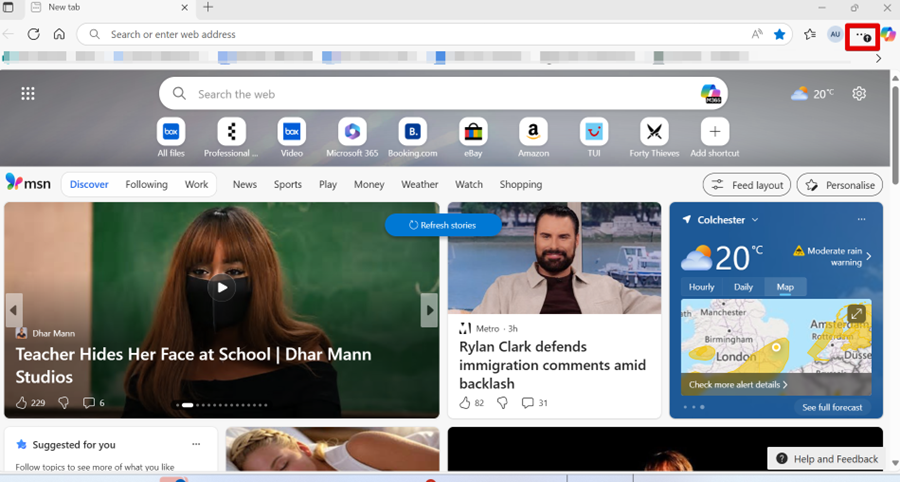
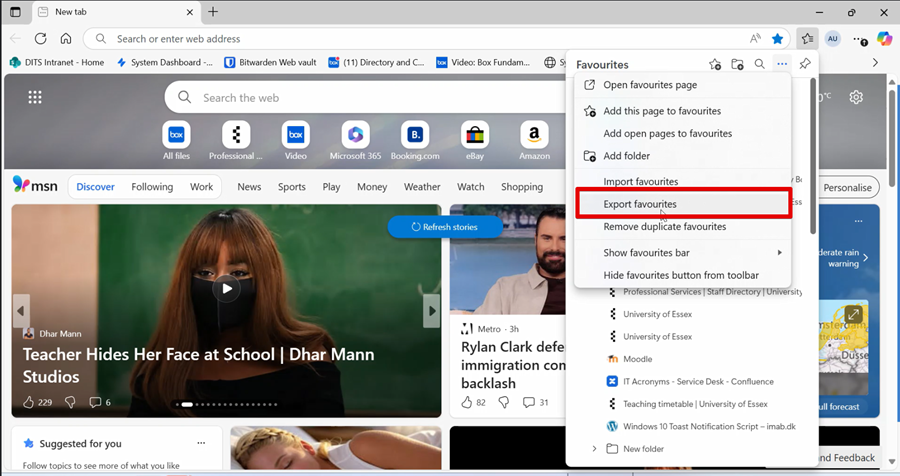
Step 1: Open Edge > Settings and more (⋯)
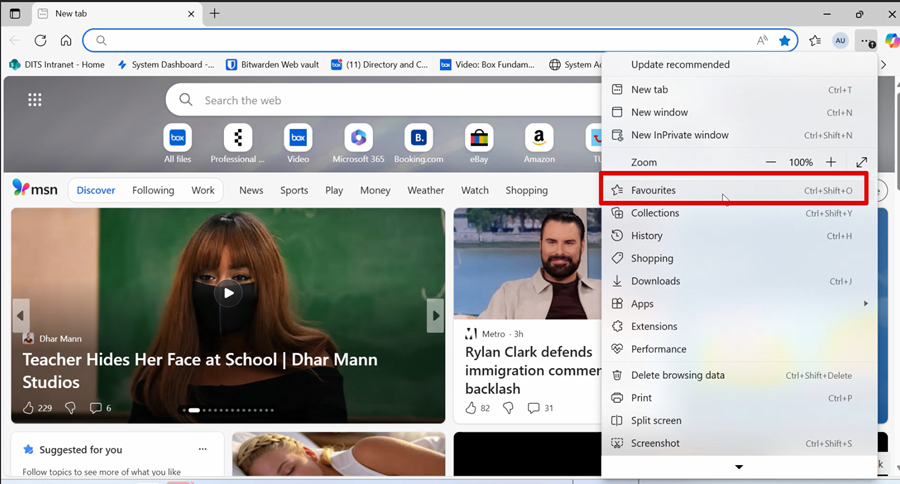
Step 2: Click “Favourites”.
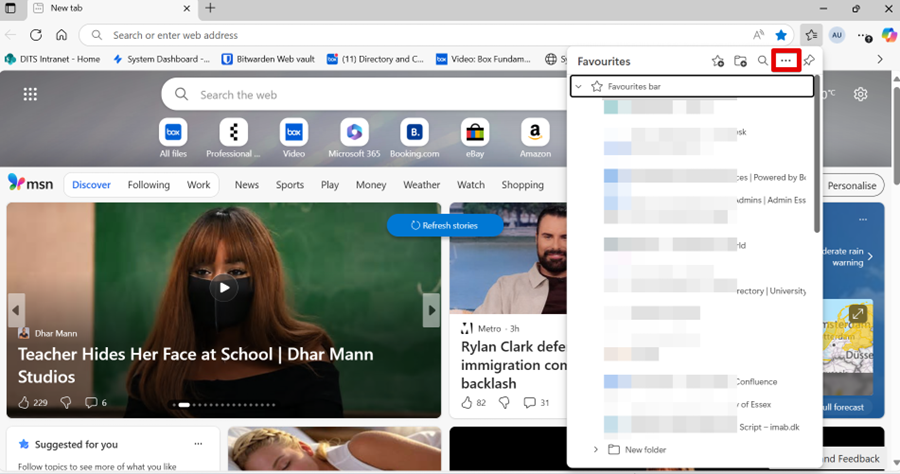
Step 3: Click the three-dot … menu (top right)
Step 4: Click “Export favourites” > save the .html file. (You may want to save it in OneDrive or Box)
=======================================================================================
HOW TO: Import or restore Microsoft Edge Browser Bookmarks
Step 1: Open Edge.
Step 2: Click the three dots (…) in the top-right corner.
Step 3: Go to Favourites.
Step 4: Click the three-dot menu > Import favourites.
Step 5: Choose “Import” beside the “Import data from IE11” option > select “Favourites or
bookmarks HTML file” from the list (“Import browser data” menu list).
Step 6: Browse to the exported .html bookmarks file you saved earlier.
Step 7: Select it and click Open.
Step 8: Your bookmarks will now appear in Edge.
Delete .html files after importing on the new device.
HOW TO: Export & Import Chrome Browser Passwords
|
Field |
Details |
|
Document Type |
How-To Guide - Export & Import Chrome Browser Passwords Runbook |
|
Applies To |
Browser |
|
Audience |
End-users |
|
Author |
AK. Udofeh |
|
Last Updated |
September 2025 |
Overview
This document outlines steps to export and import your Chrome browser passwords (the passwords that you’ve saved in your Chrome browser) before joining your device to Entra ID (Azure AD) or before you switch to a new device.
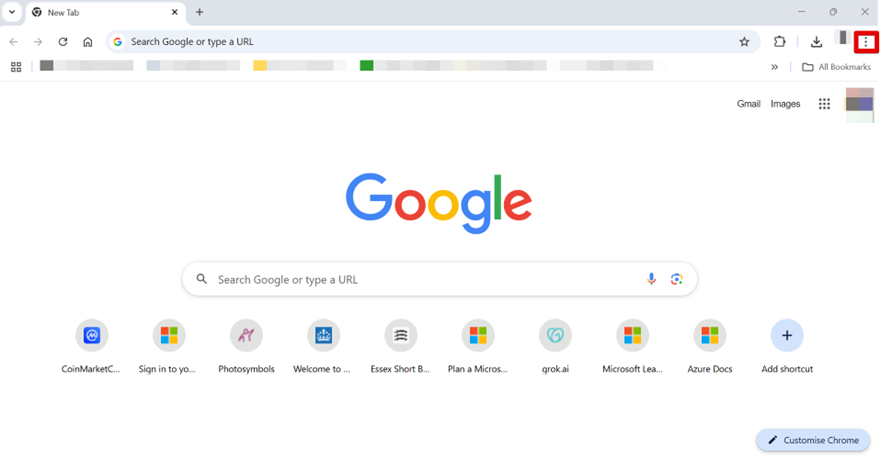
Step 1: Click the three-dot … menu (top right).
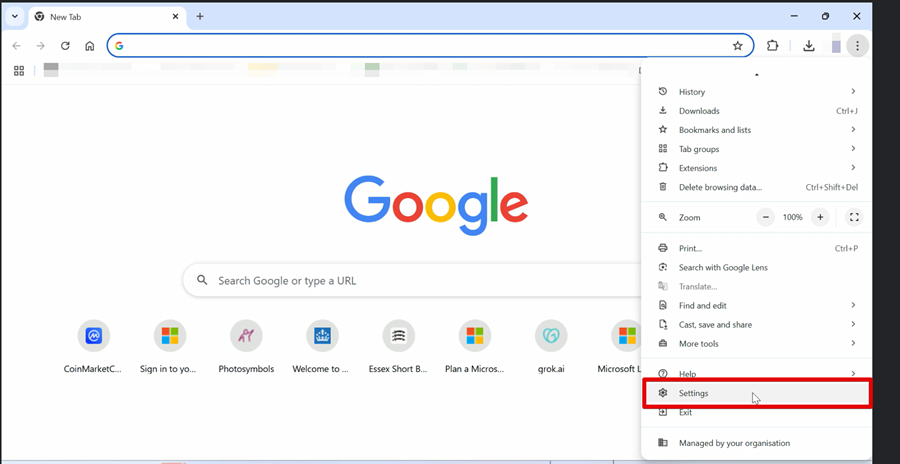
Step 2: Open Chrome > Settings.
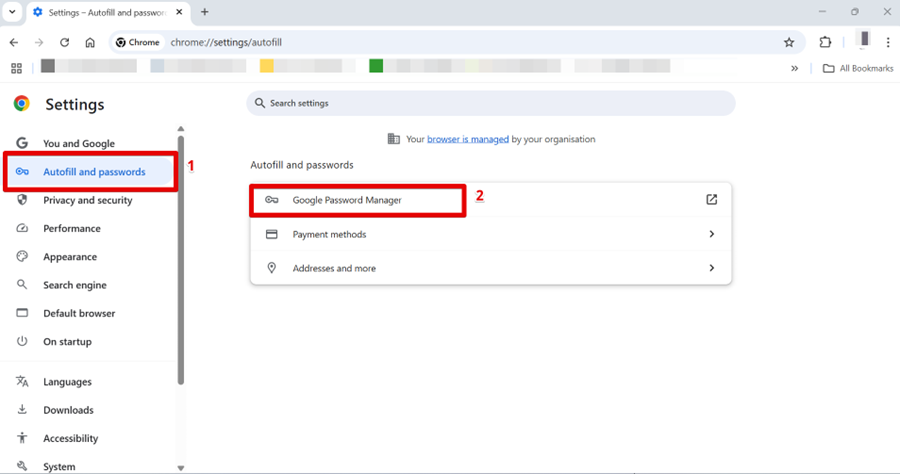
Step 3: Click “Autofill & passwords” > “Google Password Manager”.
Step 4: Click “Settings” > scroll down to “Export passwords” and click on “Download file”.
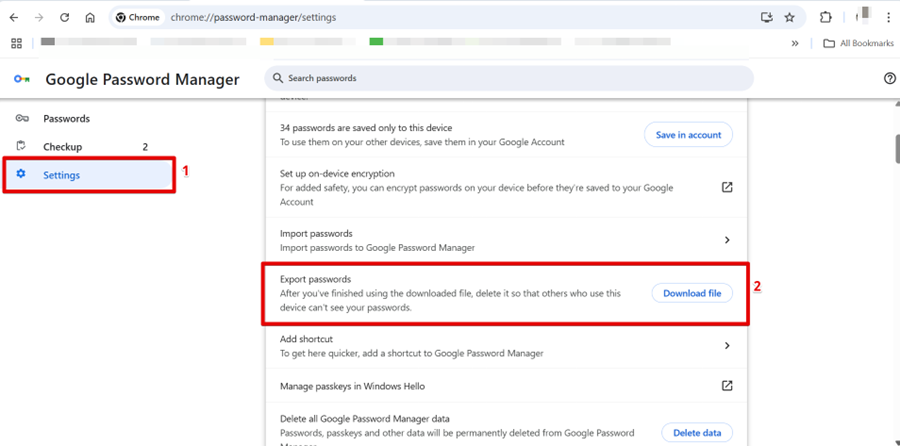
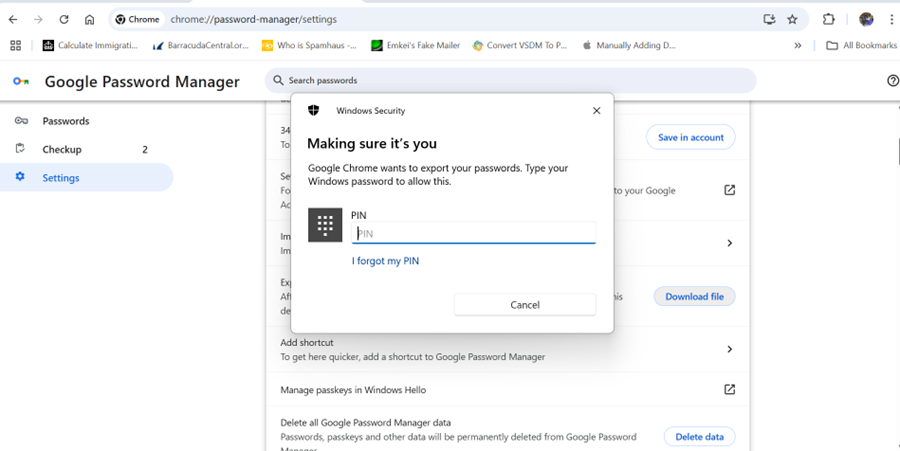
Step 5: Confirm with your Windows sign-in or account password > save the .csv. (You may want to save it in OneDrive or Box)
=======================================================================================
HOW TO: Import or Restore Chrome Browser Passwords
Step 1: Open Chrome.
Step 2: Go to the three-dot … > Settings > Autofill and Passwords > Google Password Manager
> Settings (at the left-hand pane).
Step 3: In the “Import password” option click “Select file”.
Step 4: Select the .csv password file you exported earlier.
Step 5: Click Open.
Step 6: Your passwords will now be available in Chrome.
.csv is unencrypted. Handle carefully and delete after use.
HOW TO: Export & Import Chrome Browser Bookmarks
|
Field |
Details |
|
Document Type |
How-To Guide - Export & Import Chrome Browser Bookmarks Runbook |
|
Applies To |
Browser |
|
Audience |
End-users |
|
Author |
AK. Udofeh |
|
Last Updated |
September 2025 |
Overview
This document outlines steps to export and import your Chrome browser bookmarks before joining your device to Entra ID (Azure AD) or before you switch to a new device.
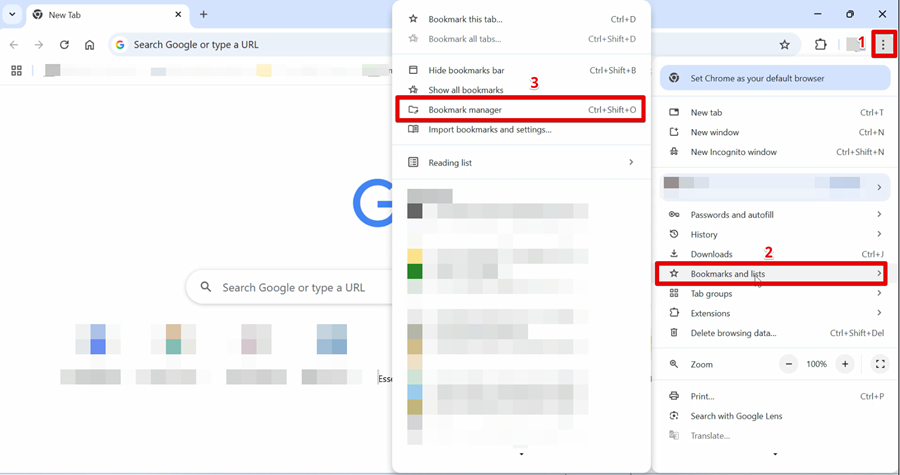
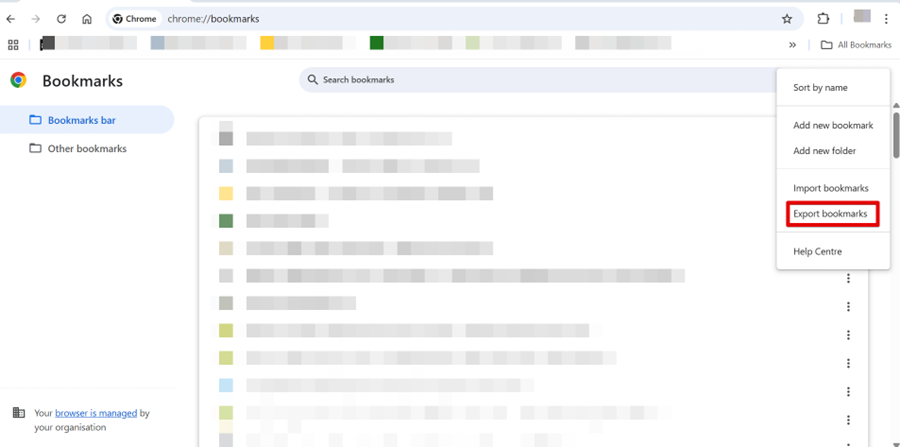
Step 1: Click the three-dot … menu (top right) > “Bookmarks and lists” > “Bookmarks Manager”.
Step 2: Click ⋯ the three-dot menu
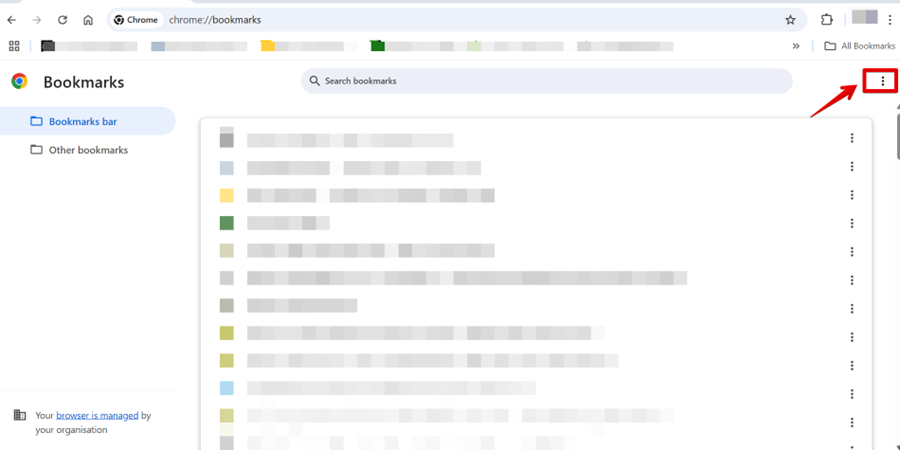
Step 3: Click “Export bookmarks” > and save the .html file (You may want to save it in OneDrive or Box).
=======================================================================================
HOW TO: Import or Restore Chrome Browser Bookmarks
Step 1: Open Chrome.
Step 2: Click the three dots menu … > Bookmarks and lists > Bookmark manager.
Step 3: In the Bookmarks page, click the three dots menu … (top right corner) choose Import Bookmarks
Step 4: Locate your exported .html bookmarks file you saved earlier.
Step 5: Click Open.
Step 6: Your bookmarks will now be restored in Chrome.
Delete HTML files after importing on the new device.