# Entra ID Self-Service Password Reset (SSPR) Implementation
| **Field**
| **Details**
|
| Document Type
| How-To Guide: Enterprise Implementation Runbook
|
| Applies To
| Microsoft Entra ID, Microsoft Entra Connect Sync, Microsoft 365
|
| Audience
| Identity Engineers / Entra ID Administrators / Systems Administrators
|
| Author | AK. Udofeh
|
| Last Updated
| March 2026
|
##### **Overview**
**[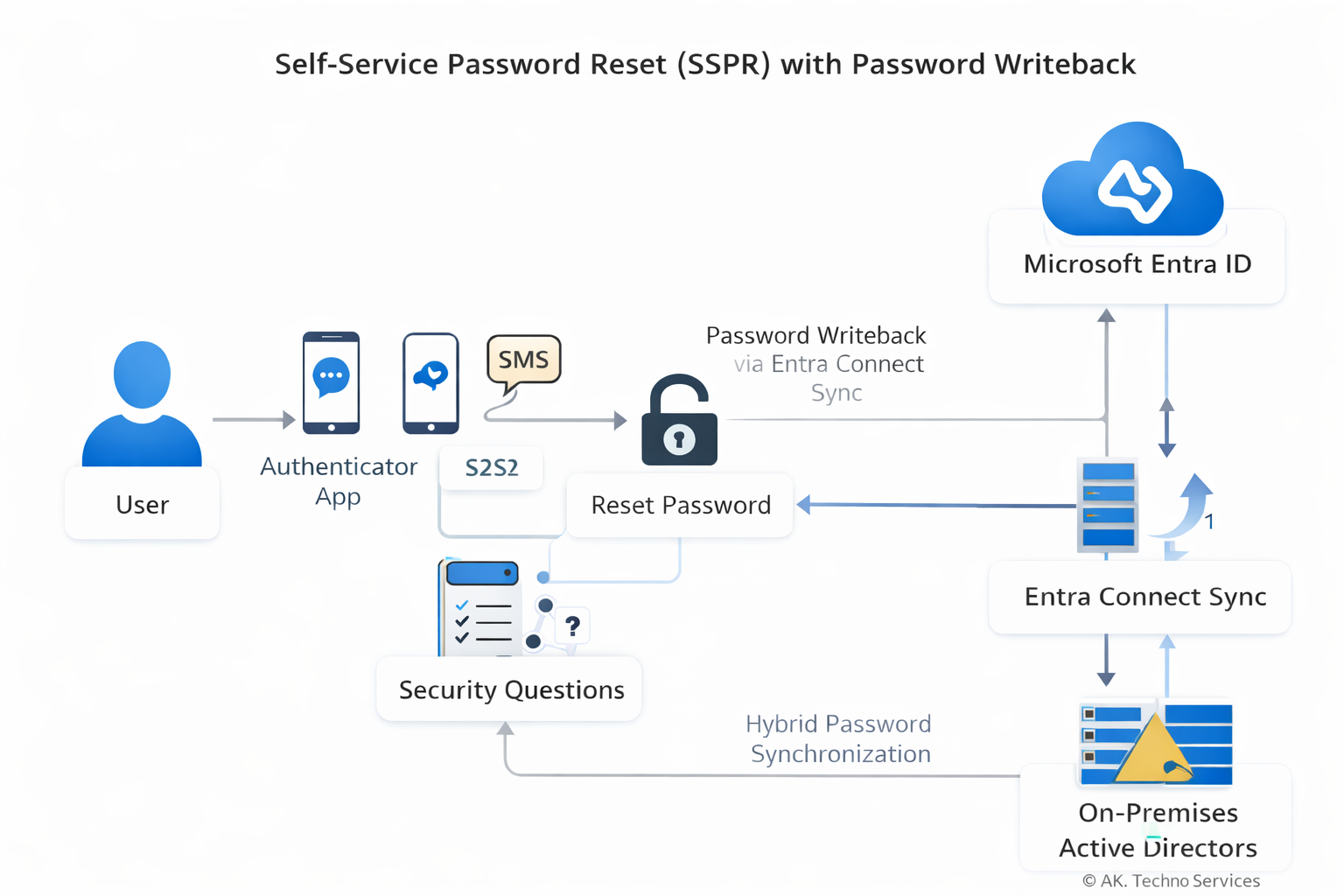](https://docs.aktechnoservices.com/uploads/images/gallery/2026-03/sspr-image.png)**
This document provides a complete runbook for implementing **Self-Service Password Reset (SSPR)** in Microsoft Entra ID within an enterprise environment using **Entra Connect Sync with Password Writeback**. The guide walks through prerequisites, configuration steps, authentication method setup, hybrid password writeback, monitoring, and troubleshooting.
The configuration enables users and administrators to reset their own passwords securely using **Microsoft Authenticator, SMS, and Security Questions**, with passwords written back to on-premises Active Directory.
##### **The Issue**
In organisations without Self-Service Password Reset enabled:
- Users must contact the **Service Desk** to reset forgotten passwords.
- Password resets generate **high ticket volume**.
- Account lockouts reduce productivity.
- Password resets outside support hours may delay business operations.
Common symptoms in such environments include:
- Frequent password reset tickets.
- Users locked out of Microsoft 365 services.
- Helpdesk manually resetting passwords in **Active Directory Users and Computers (ADUC)**.
Basic remediation steps such as:
- Clearing browser cache
- Waiting for lockout timers
- Logging into another device
do **not resolve the underlying issue**, because the problem is structural: users lack a secure self-service mechanism.
##### **Context**
The root cause is the absence of **Self-Service Password Reset capability integrated with the organisation’s identity infrastructure**.
In hybrid identity environments, password changes must occur across two identity planes:
```bash
User → Entra ID Authentication
↓
SSPR Validation (Authenticator / SMS / Questions)
↓
Entra ID Password Reset Engine
↓
Password Writeback via Entra Connect
↓
On-Prem Active Directory Password Update
↓
Password Sync Back to Entra ID
```
##### **Normal Process (with SSPR)**
1. User initiates password reset.
2. Entra ID verifies identity using configured authentication methods.
3. Password reset is approved.
4. Password writeback sends the new password to on-prem AD.
5. Entra Connect synchronises the updated password hash.
##### **What Breaks Without SSPR**
- Users cannot reset passwords independently.
- Password resets must be performed by administrators.
- Hybrid environments create delays due to manual intervention.
##### **Known Triggers for Password Reset Demand**
- Password expiry policies.
- Account lockout thresholds.
- New device sign-ins triggering authentication.
- VPN credential usage.
- Conditional Access enforcing re-authentication.
##### **Before You Start**
| **Check** | **Where** |
|---|
| Entra ID P1 or P2 licenses assigned | Microsoft 365 Admin Center |
| Microsoft Entra Connect Sync installed | On-prem identity server |
| Password Writeback feature enabled | Entra Connect configuration |
| Hybrid identity synchronisation healthy | Entra Connect Health |
| Security group created for SSPR pilot scope | Entra ID → Groups |
| Users registered for authentication methods | Security Info portal |
| Required firewall ports open | Identity infrastructure |
##### **Implementation steps**
**Step 1: Create the SSPR Security Group**
1\. Open the **Microsoft Entra Admin Center**
```bash
https://entra.microsoft.com
```
2\. Navigate to:
```
Identity > Groups
```
3\. Select **New Group**
Configuration:
| **Setting** | **Value** |
|---|
| Group Type | Security |
| Name | SSPR-Enabled-Users |
| Membership | Assigned |
This group will be used to scope the SSPR policy.
**Step 2: Enable Self-Service Password Reset**
Navigate to:
```bash
Entra ID > Password Reset
```
| **Setting** | **Value** |
|---|
| Self Service Password Reset Enabled | Selected |
| Selected Group | SSPR-Enabled-Users |
Save the configuration.
**Step 3: Configure Authentication Methods**
Navigate to:
```bash
Entra ID > Authentication Methods
```
| Method | Enabled |
|---|
| Microsoft Authenticator | Enabled |
| SMS | Enabled |
| Email OTP | Enabled |
Choose and enable all required Auth methods and add the Entra ID group with the SSPR-Enabled-Users group to the policy.
Navigate to:
```bash
Entra ID > Password Reset > Authentication Methods
```
| Setting | Value |
|---|
| Number of methods required | 1 |
Choose the desired number of authentication methods required to reset a password and save.
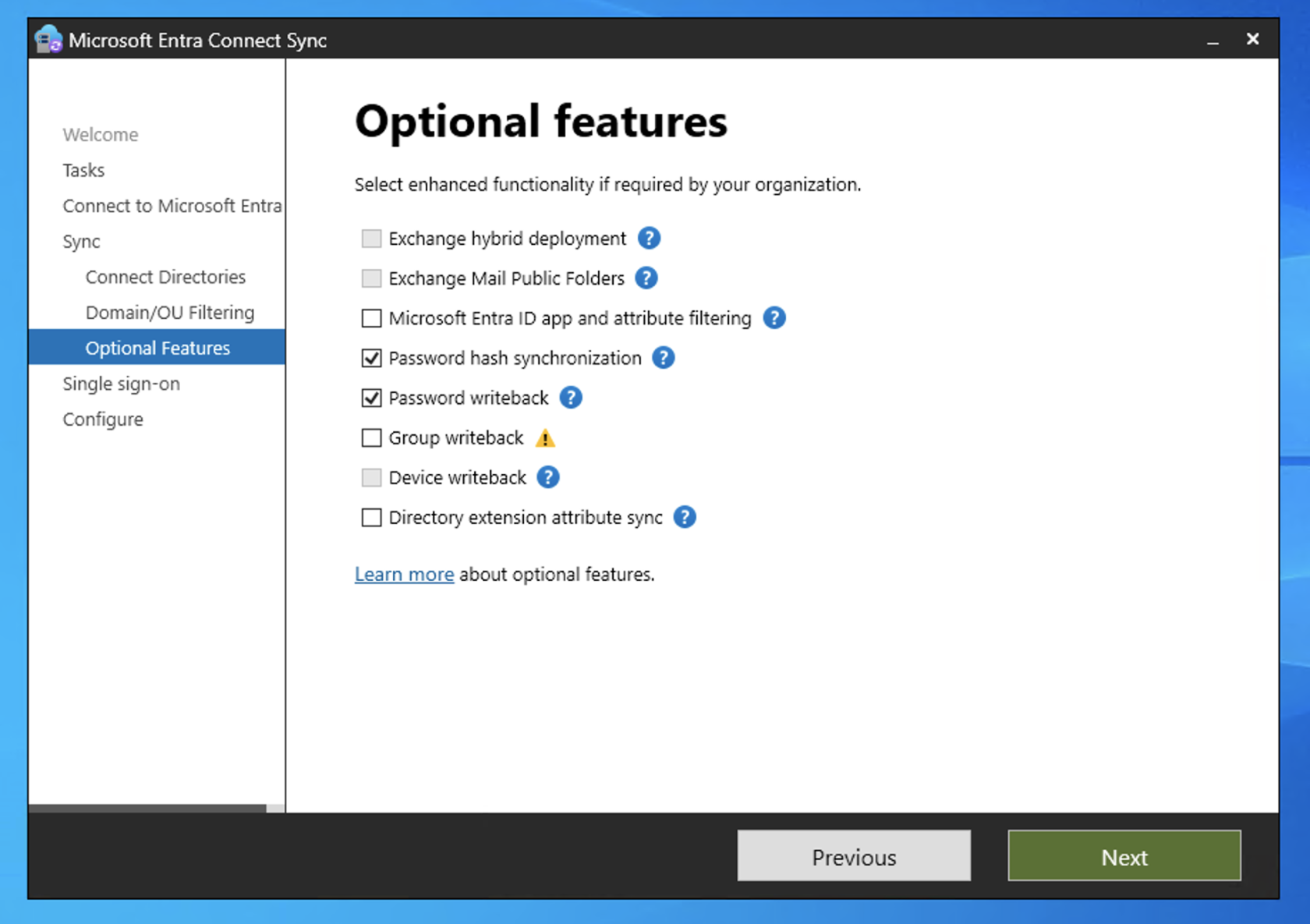
**Step 4: Enable Password Writeback**
Open the **Microsoft Entra Connect Windows Server**.
Launch:
```
Azure AD Connect
```
Select:
```
Configure → Customize synchronization options
```
During configuration:
Enable:
```
Password writeback
```
[](https://docs.aktechnoservices.com/uploads/images/gallery/2026-03/entra-id-connect-setup.png)
Complete the configuration wizard.
Verify status in:
```
Entra Admin Center
Identity → Hybrid Management → Entra Connect
```
Password writeback must show **Enabled**.
**Step 5: Enable Administrator SSPR**
In Entra ID navigate to:
```
Entra ID > Password Reset > Administration Policy
```
Administrators require stricter security.
Recommended configuration:
| Setting | Value |
|---|
| Number of authentication methods required | 2 |
| Allowed methods | Authenticator, SMS |
Security questions are **not recommended for administrators**.
**Step 6: Verify Combined Security Information Registration**
Combined registration allows users to configure **MFA and Self-Service Password Reset authentication methods in a single workflow**.
Navigate to:
```
Entra ID > Authentication Methods > Settings
```
Verify the tenant is using the **modern Authentication Methods policy framework**.
If the **Combined registration toggle is not visible**, the feature is already enabled by Microsoft and no further configuration is required.
User registration portal:
```
https://aka.ms/mysecurityinfo
```
Users will register the following methods during onboarding:
- Microsoft Authenticator
- SMS verification
- Security questions (if enabled in SSPR policy)
This portal supports both **MFA and SSPR authentication method registration**.
**Step 7: Configure User Notification Settings**
Navigate to:
```
Password Reset > Notifications
```
Recommended configuration:
| Setting | Value |
|---|
| Notify users on password reset | Enabled |
| Notify admins on admin password reset | Enabled |
**==================================== Monitoring and Reporting ==============================**
##### **Entra Audit Logs**
Navigate to:
```
Entra Admin Center
Password reset > Audit Logs
```
Filter for:
```
Activity: Self-service password reset
```
Events recorded:
- Password reset initiated
- Password reset completed
- Password writeback success/failure
##### **Sign-In Logs**
Navigate to:
```
Password reset > Audit Logs
```
Review authentication challenges and method usage.
##### **SSPR Usage Reports**
Navigate to:
```
Entra ID > Password Reset > Usage & Insights
```
Metrics include:
| Metric | Description |
|---|
| Password resets | Total resets performed |
| Registrations | Users who registered authentication methods |
| Success rate | Successful resets vs attempts |
These reports help measure adoption and identify issues.
##### **============================Troubleshooting=====================**
##### **Password Writeback Failed**
Error example:
```
Password reset failed to write back to on-premises directory
```
Possible causes:
- Entra Connect not running
- Password writeback disabled
- Domain controller connectivity issues
Resolution:
1. Verify Entra Connect service status.
2. Confirm writeback is enabled.
3. Check **Event Viewer - Application Logs** on the Entra Connect server.
##### **User Not Allowed to Reset Password**
Possible cause:
User not included in the **SSPR security group**.
Resolution:
1. Add the user to the SSPR group.
2. Wait for directory replication.
##### **User Not Registered for Authentication**
Error example:
```
You need to register for password reset
```
Resolution:
Direct the user to:
https://aka.ms/mysecurityinfo
```
https://aka.ms/mysecurityinfo
```
Complete registration before attempting password reset.
##### **Administrator Reset Fails**
Possible cause:
Administrator policy requires stronger authentication.
Resolution:
Ensure the administrator has registered:
- Microsoft Authenticator
- SMS
##### **Expected Outcome**
| **Metric** | **Result** |
|---|
| Resolution Time | Immediate user password reset |
| User Impact | Reduced helpdesk dependency |
| Recurrence Risk | Low once authentication registration is completed |