Infrastructure Projects
This book section is mainly for misc infrastructure projects
Google Workspace OU Automation using Microsoft Entra ID App Roles & SCIM Provisioning
|
Field |
Details |
|
Document Type |
Google Workspace OU Automation using Microsoft Entra ID App Roles & SCIM Provisioning |
|
Applies To |
Entra ID, Google Workspace, SCIM & Entra ID App Roles |
|
Audience |
Systems Administrator / IT Engineer |
|
Author |
AK. Udofeh |
|
Last Updated |
July 2026 |
Design Decision Record (DDR)
| Item | Decision |
|---|---|
| Business Requirement | Automatically assign Google Workspace users to the correct Organizational Unit (OU) based on Microsoft Entra ID group membership. |
| Decision | Use Microsoft Entra ID Enterprise Application App Roles combined with SCIM expression mapping to populate the Google Workspace OrgUnitPath attribute. |
| Reason | Eliminates manual OU administration while maintaining Microsoft Entra ID as the single source of truth. |
| Alternatives Considered | Manual OU assignment, Google Directory Sync (Beta), Azure Automation, Extension Attributes |
| Chosen Solution | App Roles + SCIM Expression Mapping |
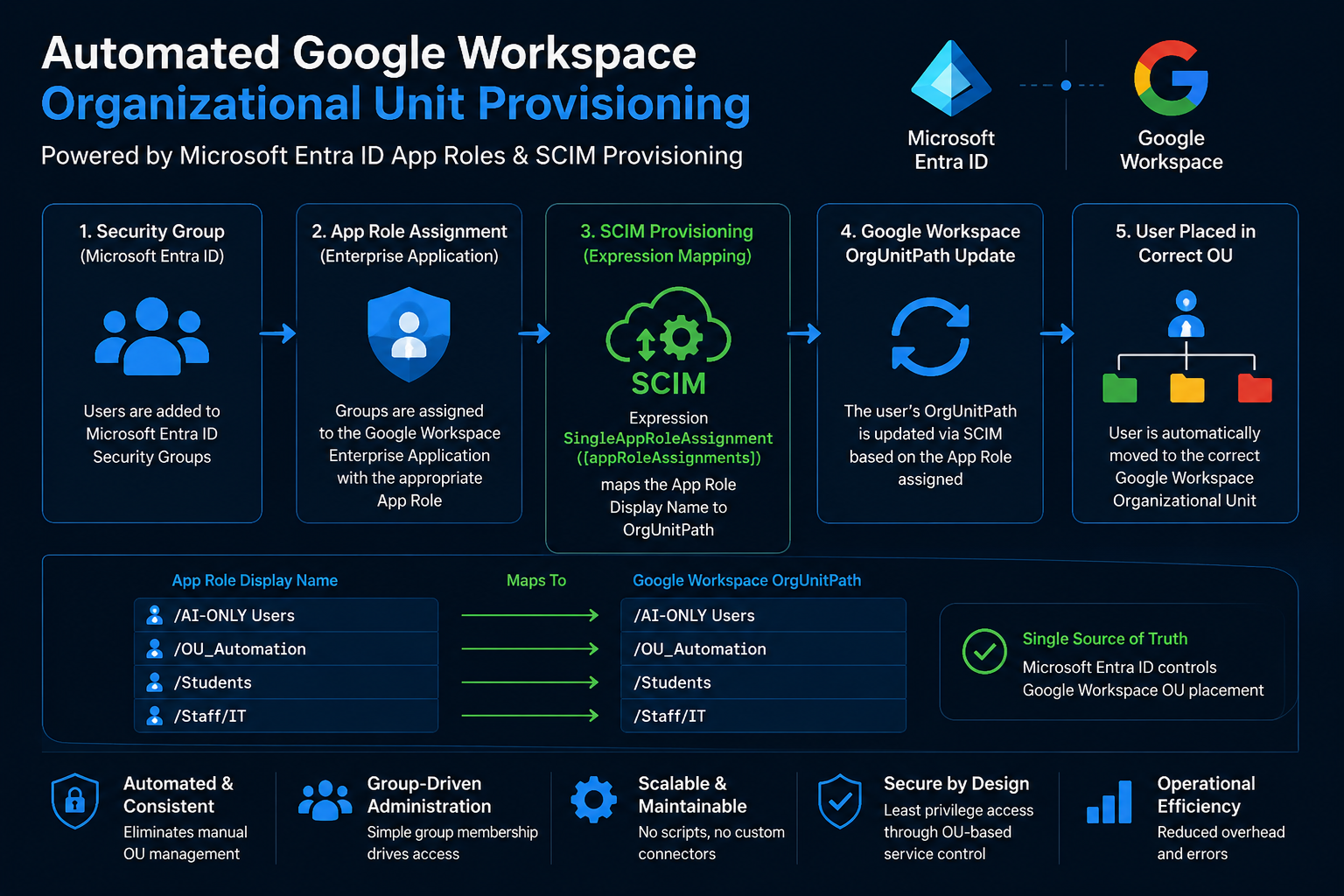
Overview
Google Workspace controls application access through Organizational Units (OUs) rather than user groups.
During the pilot implementation, Microsoft Entra ID was already responsible for user provisioning via SCIM. The remaining challenge was to automatically place newly provisioned users into the correct Google Workspace OU without introducing additional synchronization tools or manual administration.
This implementation extends the existing SCIM provisioning configuration by using Enterprise Application App Roles together with an expression mapping to automatically populate the Google Workspace OrgUnitPath attribute.
As a result:
Entra Security Group
│
▼
Enterprise Application App Role
│
▼
SCIM Expression
│
▼
Google OrgUnitPath
│
▼
User automatically moved into the correct OU
Prerequisites
Microsoft Entra ID
- Google Cloud / G Suite Connector by Microsoft configured
- SCIM Provisioning operational
- Users assigned to the Enterprise Application
- Enterprise Application Administrator or Global Administrator permissions
Google Workspace
- SCIM configured
- Target Organizational Units created
- Administrative access
Step 1: Create the Google Workspace Organizational Units
Google Admin Console
Google Admin Console
Directory
Organizational Units
Create the required Organizational Units.
Example:
/
├── AI-ONLY Users
├── OU_Automation
├── Students
└── Staff
The Google Workspace OU names will later be used as the Enterprise Application App Role Display Names.
Step 2: Create Enterprise Application App Roles
Entra ID

↓

App registrations

↓

Google Cloud / G Suite Connector by Microsoft

↓

App Roles
Create one App Role for each Google Workspace OU.
Recommended example:
| Display Name     | Value         |
| ---------------- | ------------- |
| `/AI-ONLY Users` | AI_ONLY_USERS |
| `/OU_Automation` | OU_AUTOMATION |
| `/Students`      | STUDENTS      |
| `/Staff`         | STAFF         |
The Display Name must exactly match the Google Workspace Organizational Unit path. The Value is simply an identifier and does not need to match the OU.
Step 3: Assign Users or Groups to the Enterprise Application
Enterprise Applications

↓

Google Cloud / G Suite Connector by Microsoft

↓

Users and Groups
Assign:
- Individual users or
- Microsoft Entra ID Security Groups
Critical Step
When creating the assignment, select the correct App Role.
Example:
| Security Group | App Role         |
| -------------- | ---------------- |
| GG-GWS-AI      | `/AI-ONLY Users` |
| GG-GWS-Pilot   | `/OU_Automation` |
Simply assigning a user or group to the Enterprise Application is not sufficient. The App Role selected during the assignment determines the Google Workspace OU that the user will be provisioned into.
Step 4: Configure the SCIM Expression Mapping
Enterprise Applications

↓

Google Cloud / G Suite Connector

↓

Provisioning

↓

Attribute Mapping

↓

Users

↓

Add Attribute Mapping
Configure the mapping as follows:
| Setting          | Value                                           |
| ---------------- | ----------------------------------------------- |
| Mapping Type     | **Expression**                                  |
| Expression       | `SingleAppRoleAssignment([appRoleAssignments])` |
| Target Attribute | `OrgUnitPath`                                   |
| Apply Mapping    | Always                                          |
| Match Object     | No                                              |
This expression evaluates the assigned Enterprise Application App Role and writes the App Role Display Name into the Google Workspace OrgUnitPath attribute.
Step 5: Validate the Configuration
Use Provision on Demand to test with a pilot user.
OrgUnitPath

Old:
/AI-ONLY Users

New:
/OU_Automation
OrgUnitPath
Old:
/AI-ONLY Users
New:
/OU_AutomationConfirm in Google Workspace that the user has automatically moved to the new Organizational Unit.
Monitoring & Validation
Provisioning logs can be viewed under:
Enterprise Applications

↓

Google Cloud / G Suite Connector

↓

Provisioning Logs
Successful provisioning should show an update similar to:
| Attribute   | Old              | New              |
| ----------- | ---------------- | ---------------- |
| OrgUnitPath | `/AI-ONLY Users` | `/OU_Automation` |
Notes on Group Provisioning
During testing, Entra ID Security Groups were evaluated by the provisioning service but were logged as:
SkipReason

MissingJoiningProperty
This behaviour is expected for this implementation and does not impact automated OU placement.
The design relies on:
- Group membership within Microsoft Entra ID
- Enterprise Application App Role assignments
- SCIM updating the user object
Google Workspace group objects are not required for this solution.
Important Considerations
- The App Role Display Name must exactly match the Google Workspace OU path.
- The leading
/should be included (for example/Students). - Users should only be assigned one Google Workspace App Role at a time.
- Group-based assignment is recommended over individual user assignments.
- Existing users are not affected until assigned an App Role and reprovisioned.
- Provisioning should first be validated using Provision on Demand before enabling for production users.
Best Practices
- Use Microsoft Entra ID Security Groups as the administrative entry point.
- Maintain Microsoft Entra ID as the single source of truth.
- Keep App Role names aligned with Google Workspace OU paths.
- Test all new OU mappings with a pilot user before assigning to production groups.
- Review provisioning logs after any App Role or OU changes.
Lessons Learnt
SingleAppRoleAssignment([appRoleAssignments])returns the App Role Display Name, making it ideal for mapping directly toOrgUnitPath.- The App Role Display Name should include the leading
/and exactly match the Google Workspace OU path. - The App Role Value is not used for this mapping and can remain a simple identifier.
- Google group objects may appear as
MissingJoiningPropertyin provisioning logs without affecting the user OU automation.
Summary
This implementation extends the existing Google Workspace SCIM provisioning configuration by using Enterprise Application App Roles to dynamically populate the Google Workspace OrgUnitPath attribute.
The solution enables Microsoft Entra ID group membership to automatically determine a user's Google Workspace Organizational Unit, providing a scalable, low-maintenance, and script-free approach to managing Google Workspace service access.